
Turn each questionnaire response into a Google Doc
A clinic sends a short questionnaire after every visit. The practice manager reads them one at a time and files them, so a spreadsheet row is the wrong shape — each response wants to be a document.
- The scenario
- A post-visit questionnaire that already exists on the clinic's site, written by whoever built the page. Nobody wants to rebuild it; they want it delivered somewhere useful.
- What you end up with
- One Google Doc per response, created from your own styled template, in a Drive folder you control.
- You need
- Sheets and Drive connected
- A Pro workspace — Google Doc is a Pro output
- The questionnaire's existing HTML, and the domain it is published on
-
Setup › Import & map HTML
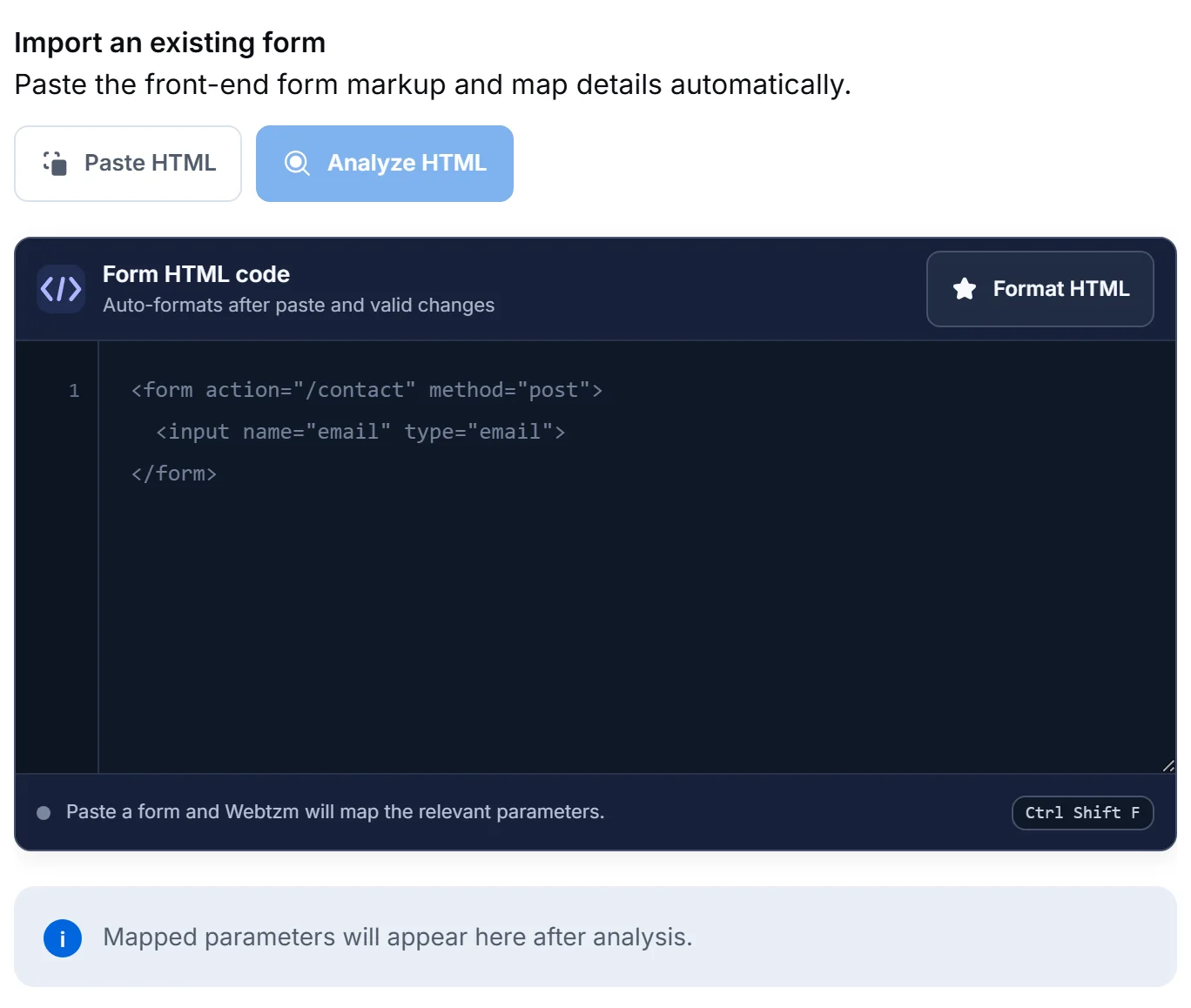
Paste the markup you already have
Advanced mode's other starting point is your own markup. Webtzm does not scan a page URL and does not guess which form on the page you mean — you paste the one form you want connected.
 Open full size
The editor auto-formats after a paste, so pasted markup from a page builder becomes readable before you check it. The questionnaire as it exists on the clinic's site — paste this, then select Analyze HTML <form id="visit-feedback"> <label for="patient">Your name</label> <input id="patient" name="patient" type="text" required> <label for="visit_date">Date of visit</label> <input id="visit_date" name="visit_date" type="date" required> <label for="rating">How was your visit?</label> <select id="rating" name="rating" required> <option value="Excellent">Excellent</option> <option value="Good">Good</option> <option value="Fair">Fair</option> <option value="Poor">Poor</option> </select> <label for="comments">What could we do better?</label> <textarea id="comments" name="comments" rows="4"></textarea> <button type="submit">Send feedback</button> </form> -
Setup › Import & map HTML
Check what was mapped, and what was skipped
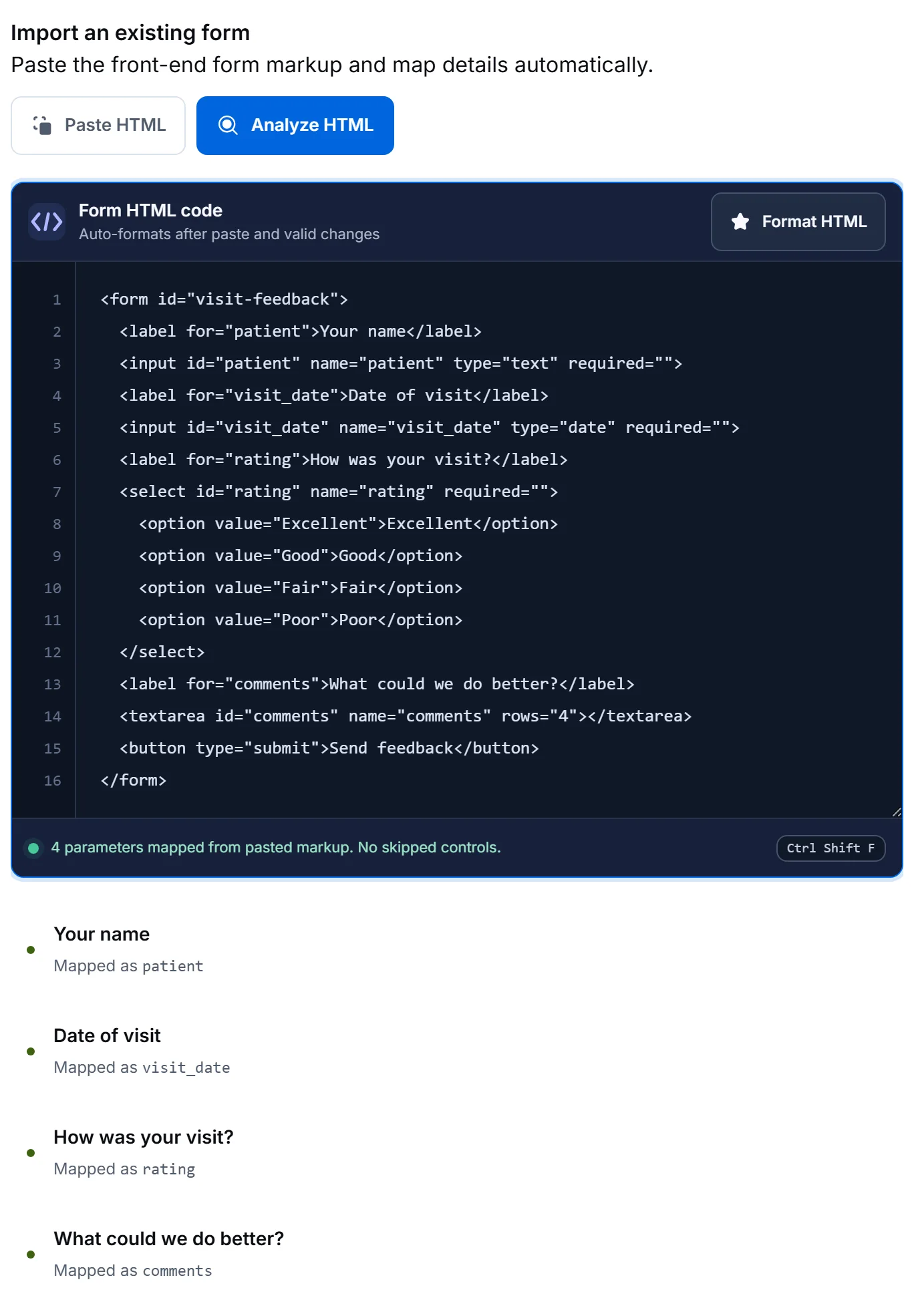
Analysis reports two numbers, and the second one matters more: how many parameters it mapped, and how many controls it had to skip.
 Open full size
Four mapped, none skipped. Each label is shown against the parameter it became — How was your visit? is stored as rating. -
Setup › Output
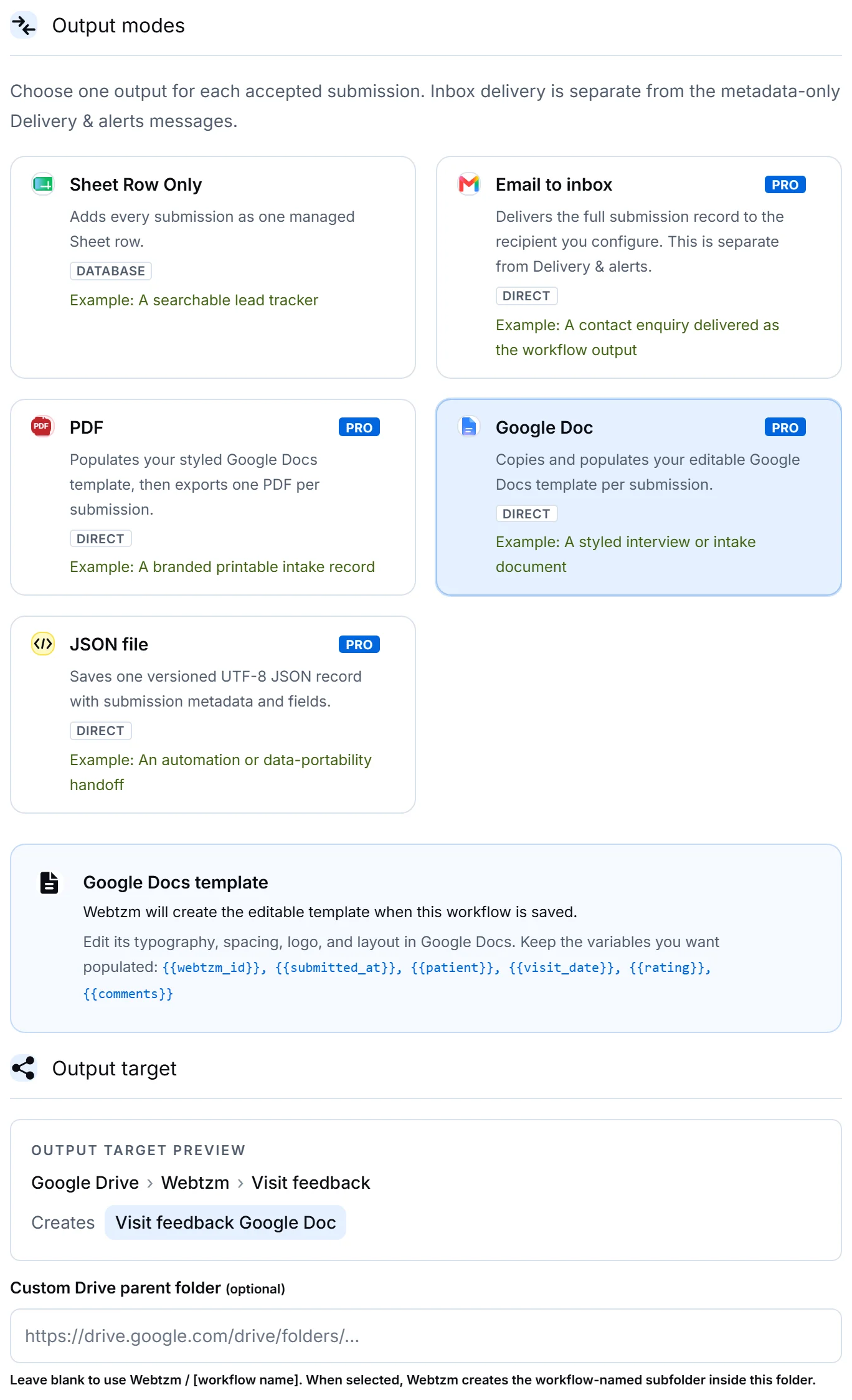
Choose Google Doc as the output
 Open full size
Google Doc copies and populates your template once per submission. PDF does the same and then exports — see the job application tutorial. 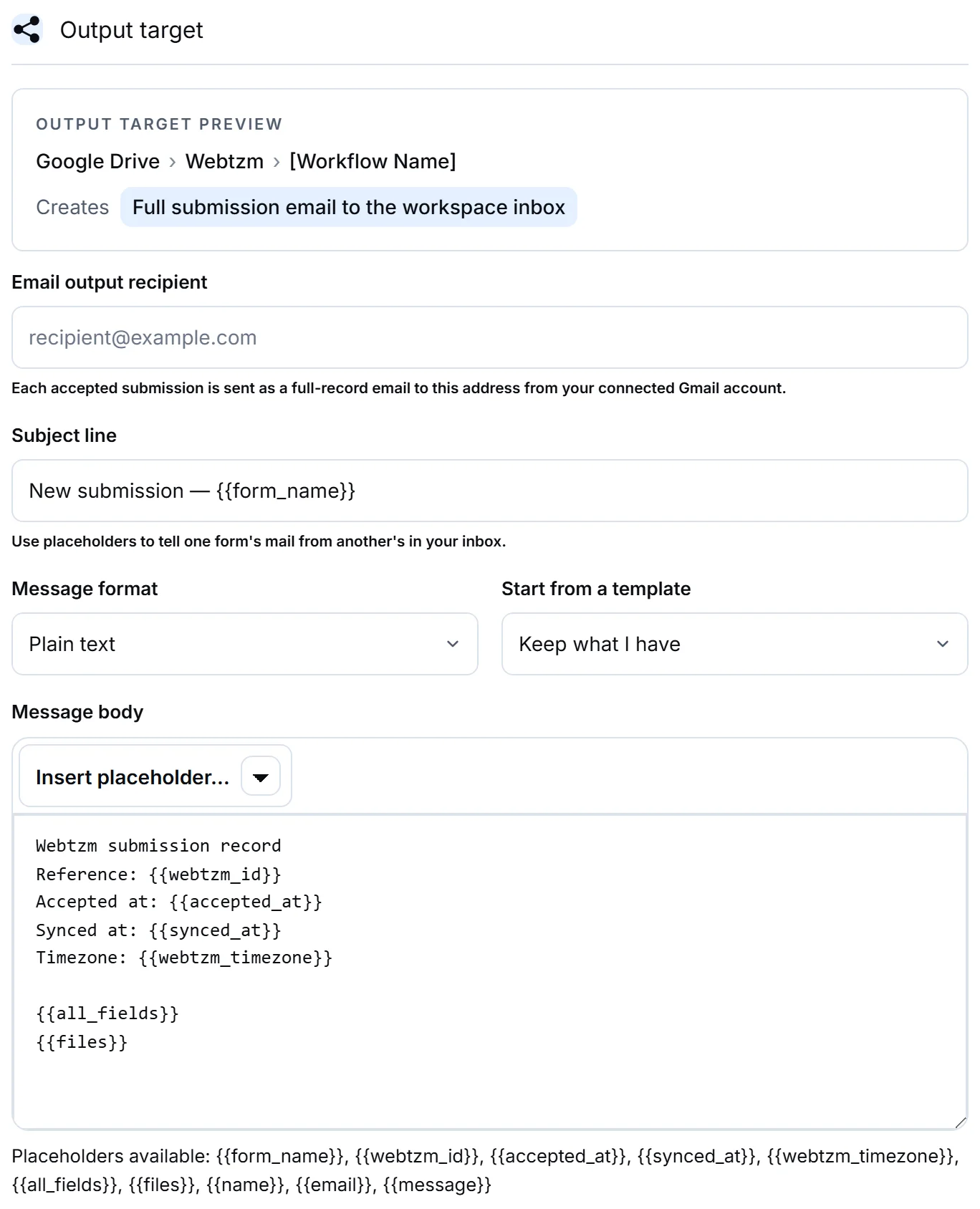 Open full size
The target preview names the folder before anything is created, so you find out where the documents will land while you can still change it. 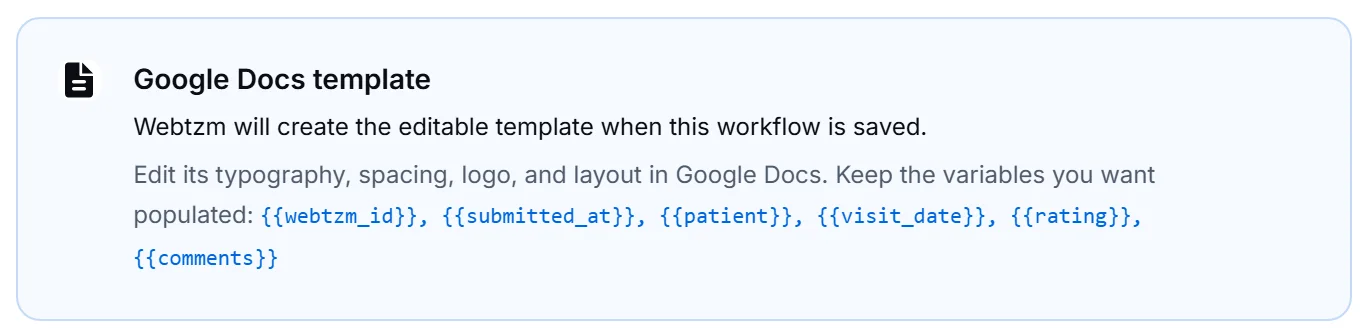 Open full size
The panel lists the variables your template can use. They are your field parameters — patient,visit_date,rating,comments.Write the template in Google Docs the way you want the finished response to read — the clinic's letterhead, the question wording, a space for the manager's note — and put a variable everywhere an answer belongs. Webtzm copies the template per submission and fills the variables in; it never edits your original.
-
Behavior › Security & privacy
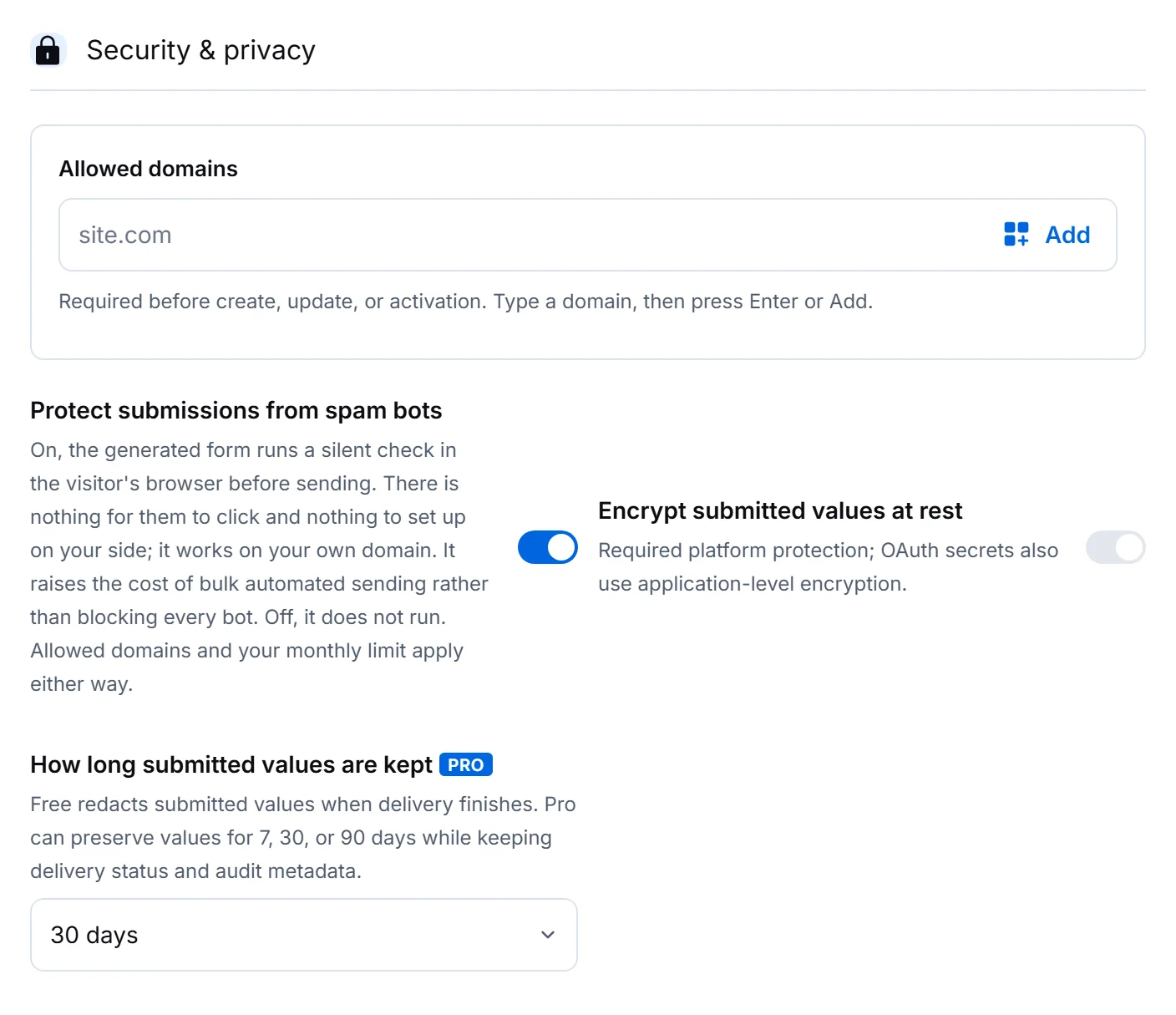
Decide how long Webtzm keeps its own copy
Health-adjacent answers deserve a deliberate answer to this question rather than a default.
 Open full size
Free redacts submitted values once delivery finishes. Pro can keep them for 7, 30 or 90 days. - Retention governs Webtzm's copy of the submitted values. Delivery status and audit metadata are kept either way.
- It removes nothing from Google. The Docs in your Drive are yours and stay until you delete them.
- A shorter window means less to resend if a delivery later needs another attempt. That is the trade.
-
Your own site
Replace the published form with the generated one
Importing your markup gave Webtzm the field map. It did not connect your published page. Copy the generated code from the Code tab and replace the form on the site with it — that version carries the workflow id, the anti-spam check and the status region.
Then submit one invented response and confirm Delivered in Submissions.
What lands in Drive
 Open full size
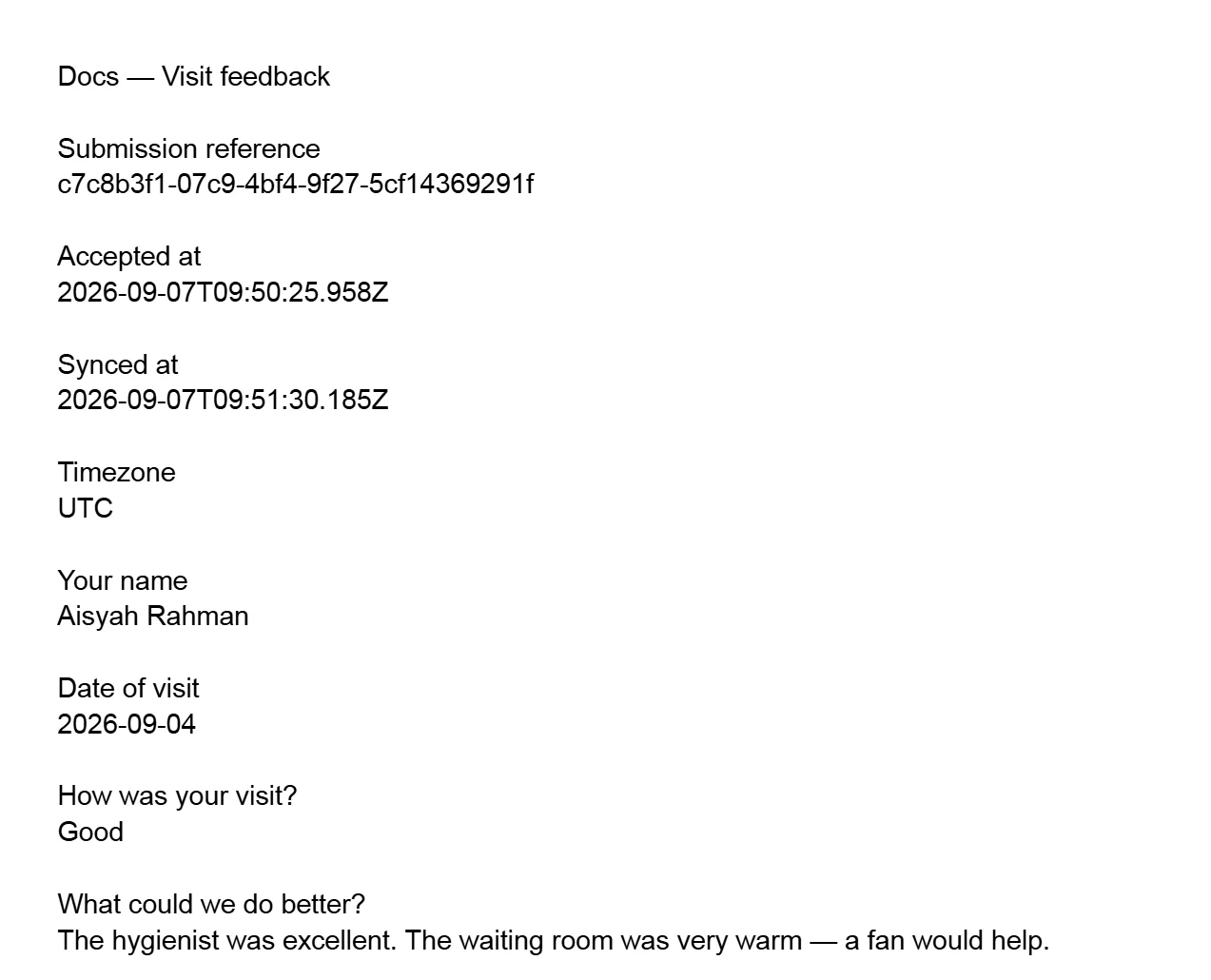
One Google Doc per response, named after the workflow and the submission, inside the folder shown in the output target preview — by default Webtzm / [workflow name] in the Drive of the account you connected.
- The Doc is a normal Google Doc. Comment on it, share it, move it, edit it — Webtzm does not read it back.
- Your template is untouched. Each submission copies it.
- Nothing links the Doc back into Webtzm, so if you also want the answers in a table, run a second workflow with a Sheet output on the same form.