
Take a CV upload and file the application as a PDF
A four-person design agency hires twice a year and reads applications on a tablet. They want the CV in Drive next to a one-page summary they can annotate — not an inbox thread with an attachment somewhere in it.
- The scenario
- An occasional hiring round on the agency's own careers page. Applicants send a CV, sometimes a portfolio, and answer three questions.
- What you end up with
- One PDF per application from the agency's template, and the uploaded files stored in a Drive folder the agency chose.
- You need
- Sheets and Drive connected
- A Pro workspace — file fields and the PDF output are both Pro
- A Google Docs template styled the way the summary should read
-
Setup › Build
Add the upload field
Add a field, name it
Portfolio or CV, and set its type to File. The field grows its own settings, because a file needs decisions a text box does not.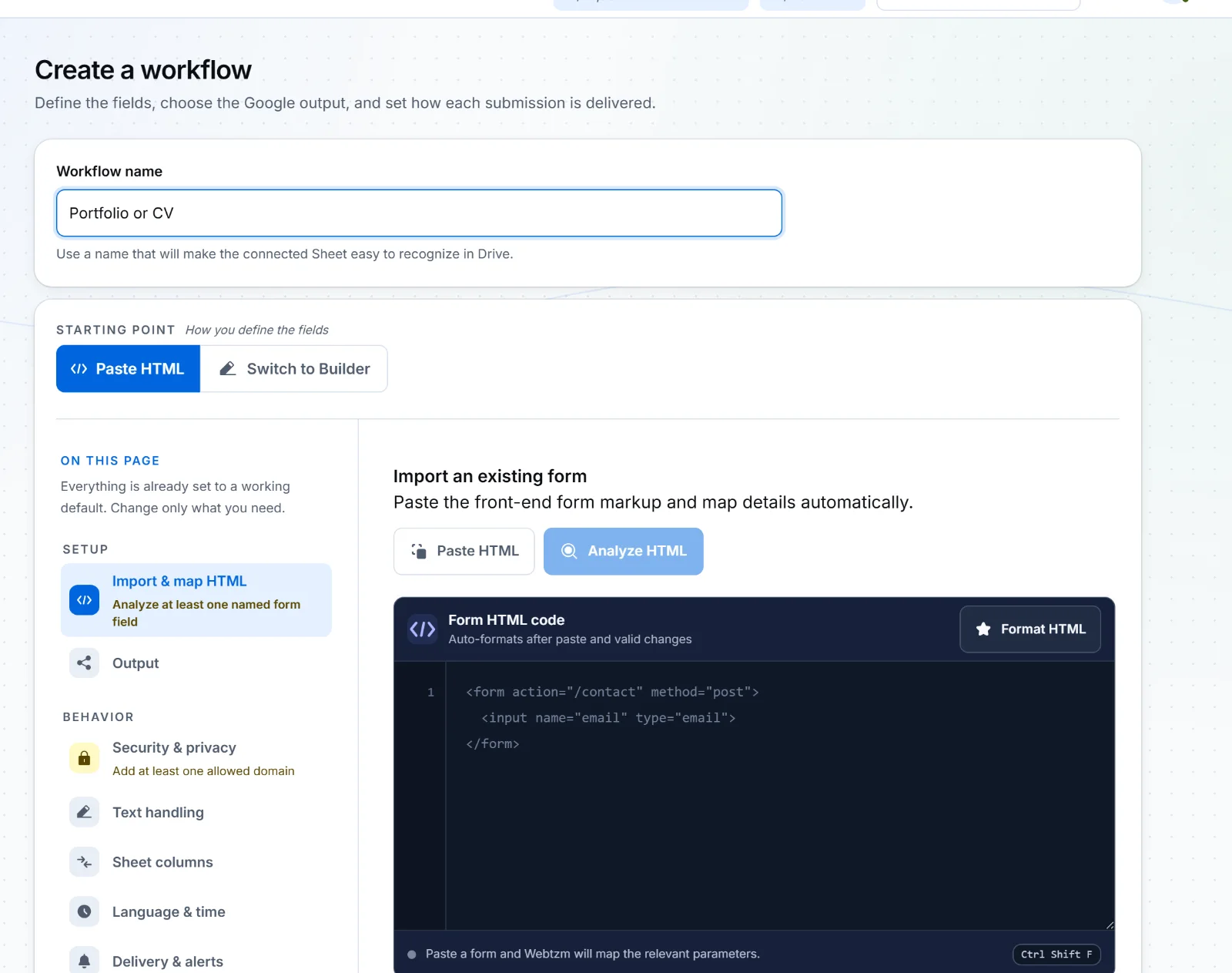 Open full size
Accepted types, maximum size, how many files, and what to do with images before they are stored. - Accepted types — narrow this.
.pdfalone rules out a lot of nuisance and most surprises. - Size and count — up to 3 files, 25 MB each, and 75 MB per submission, inside the workspace's monthly file budget.
- Image compression — on by default. A photographed portfolio page arrives as a sensible image rather than a 24-megapixel one.
- Accepted types — narrow this.
-
Setup › Output
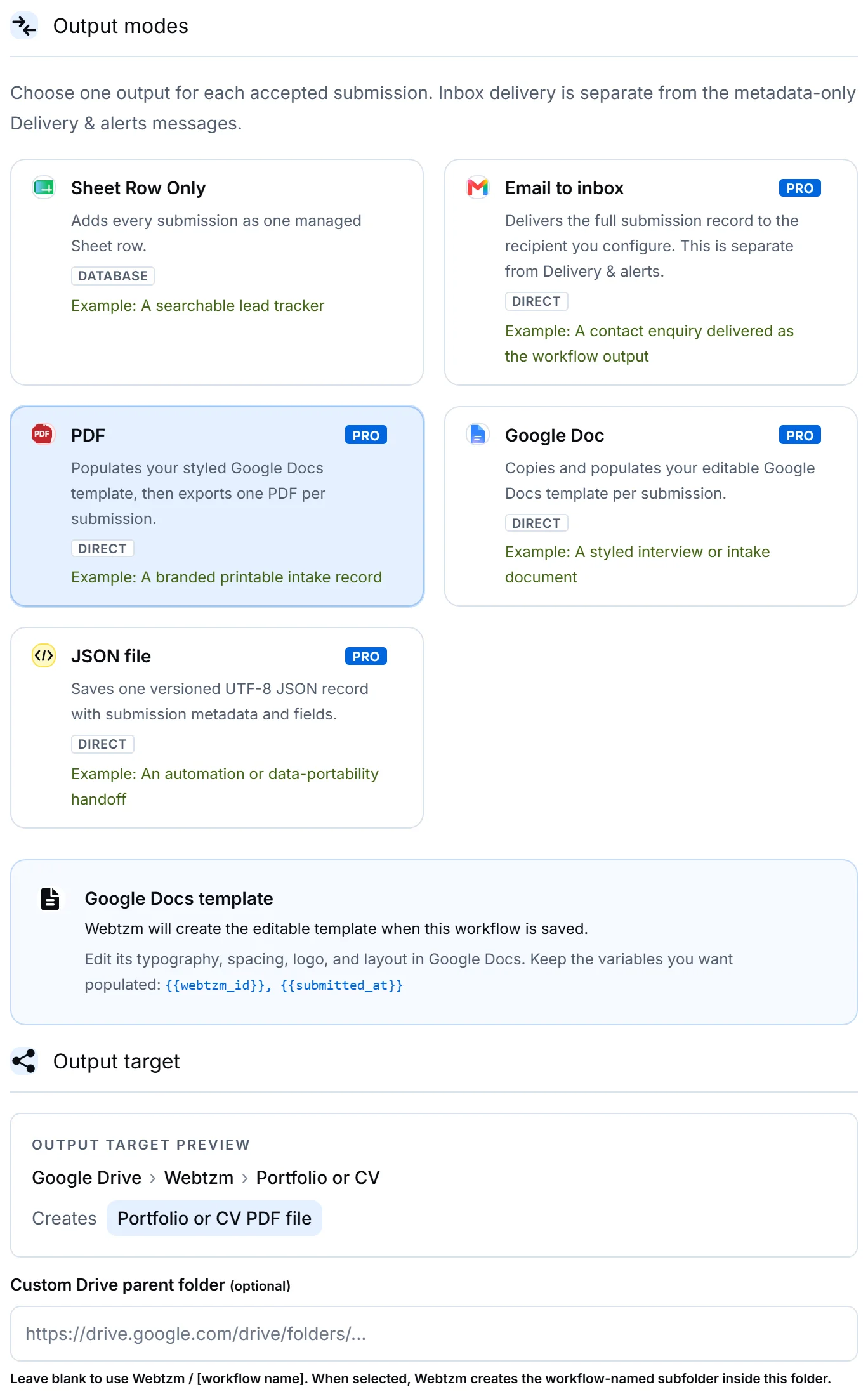
Choose the PDF output
 Open full size
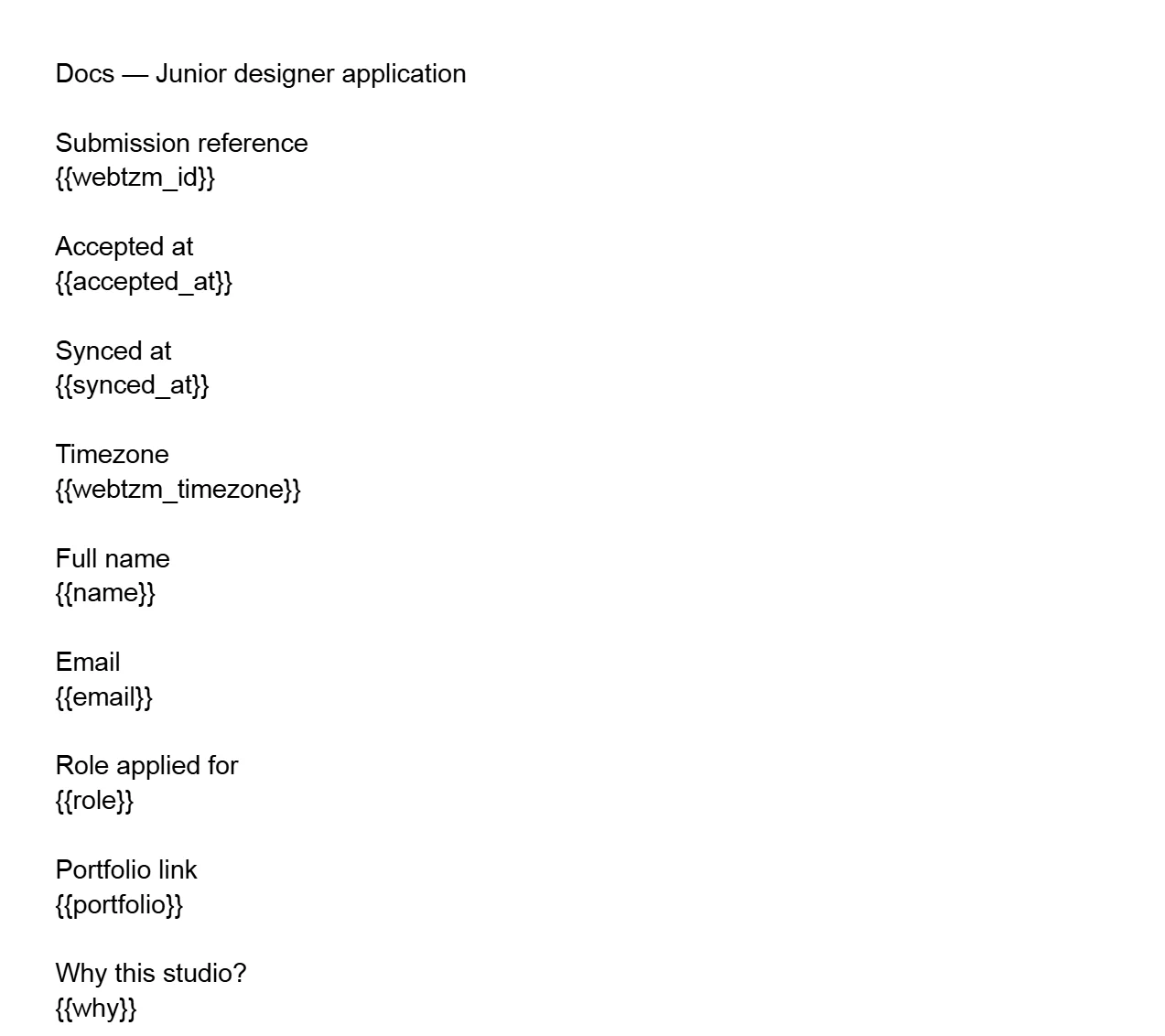
PDF populates your Google Docs template and then exports it. The template stays a Doc; the delivered artefact is a PDF. You do not start from a blank page. Creating the workflow puts a starter template in the workflow's Drive folder, with a variable already in place for every field you defined.
 Open full size
The template Webtzm created for this workflow. Each {{variable}}is replaced per submission — restyle the document around them and every future PDF follows.Open it, apply the agency's letterhead and typography, move the fields into the order a reviewer reads them, and delete the ones you do not want. Keep the variable text itself intact: that is what gets replaced.
-
Setup › Output target
Send it to a folder that already means something
By default Webtzm creates
Webtzm / [workflow name]in your Drive. For a hiring round that is the wrong place — applications belong beside the rest of the recruitment paperwork.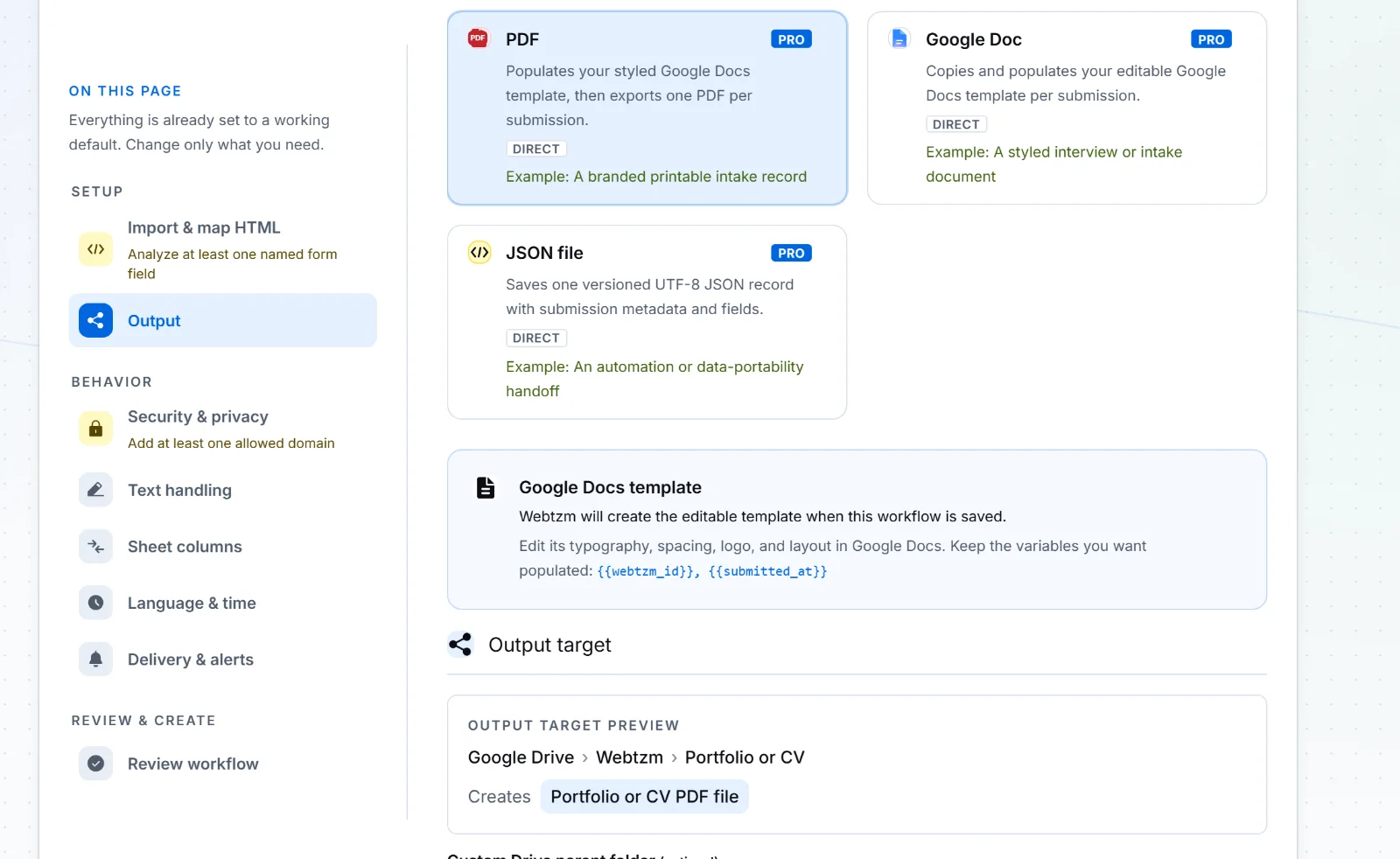 Open full size
Name a parent folder and Webtzm creates the workflow-named subfolder inside it. The preview shows the path you will actually get. -
Your own site
Test with a real file, and watch the file row
Publish the generated code and submit one application with an actual PDF attached — a small invented one. Uploads are the part of a form most likely to behave differently on a phone, so test on one.
- The form shows a row per file while it uploads.
- If a file breaks a visible rule — wrong type, too large — remove or replace it and submit again.
- If an upload fails part-way, the row offers Retry. Use it rather than resubmitting the whole form.
What the hiring folder holds
For each application: the uploaded files, and one PDF generated from the agency's template with the answers already laid out.
- The PDF is a normal Drive file. Annotate it, print it, move it into a shortlist folder.
- The uploaded files sit alongside it, under the workflow's subfolder inside the parent you chose.
- Deleting a file from Drive does not tell Webtzm. The delivery record still says it was delivered, because it was.
File budgets are monthly and workspace-wide: 10 GB on Pro, 50 GB on Pro Scale, with the same per-submission safeguards on both. A hiring round is nowhere near either; a public photo competition might be, so watch the usage tile if you run one.