
Webtzm Form: a page for your form
Give a connection its own form page on webtzm.app and send people a link or a QR code. You need no website.
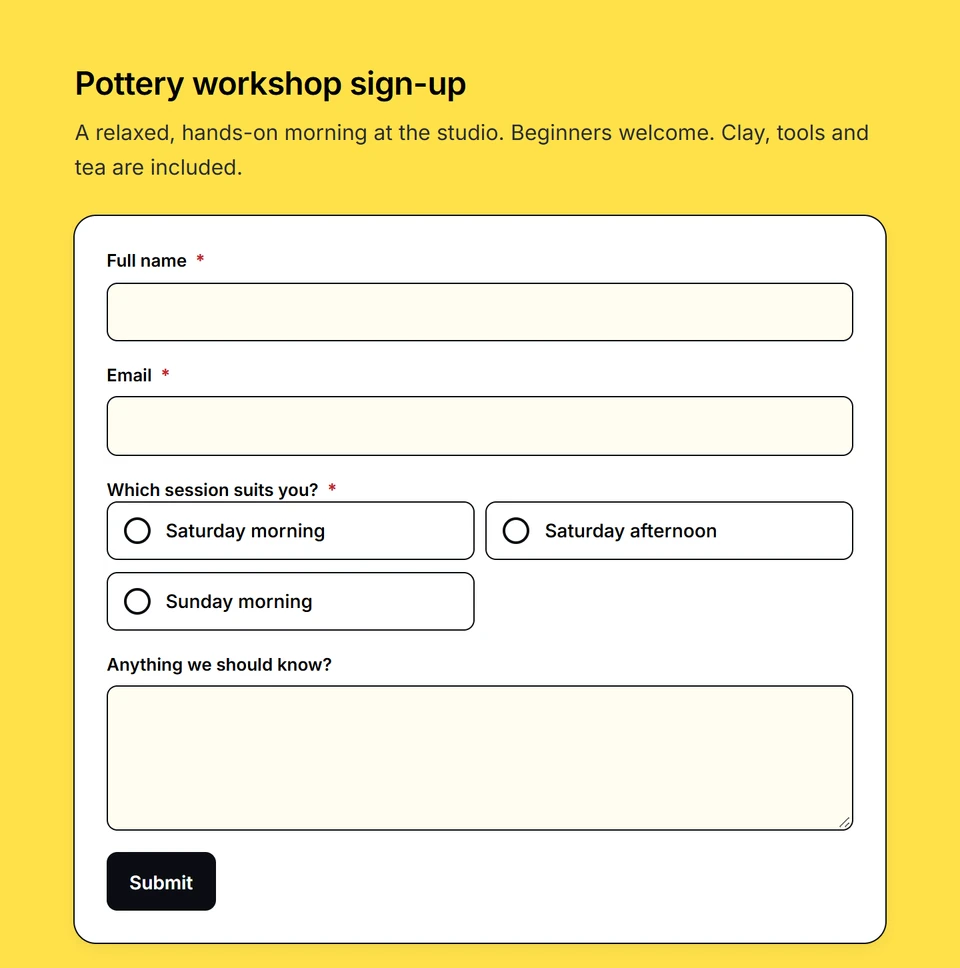
A form page is a page Webtzm hosts for one connection. Anyone with the link fills in the form there, and the response is delivered the way a response from a form on your own website is: into the connection's Google Sheet. A connection has no page until you turn one on.
 Open full size
Turn it on
-
Open the connection's Setup
In Connections, open the connection and then Setup, and go to Share.
-
Turn on Webtzm page
Once the page is live the switch reads On. Anyone with the link can fill in this form. Turn it off and its link stops opening a form.
-
Copy the link
Copy puts the link on your clipboard, Open shows the page as a visitor sees it, and the QR code opens the same address when scanned.
Where you start a new connection, choose Make a shareable form. It creates the connection with its page already on. The Page action on a connection's card opens the page editor, where you choose the look and see a preview of the page as it is.
A page collects new responses, so a connection that changes or removes rows cannot have one. A form with a field that asks for a password or a card number cannot be put on a page. A paused connection shows visitors a closed page until you resume it.
Share it
- A short permanent link
- Every page has a link of
webtzm.app/f/and seven characters. It is chosen once and never changes, and a link you shared earlier keeps opening the same page. Turn the page off and on again and the link is the same. - The QR code
- Drawn in the console from the same link, so a printed code and a pasted link open the same page.
- Link previews
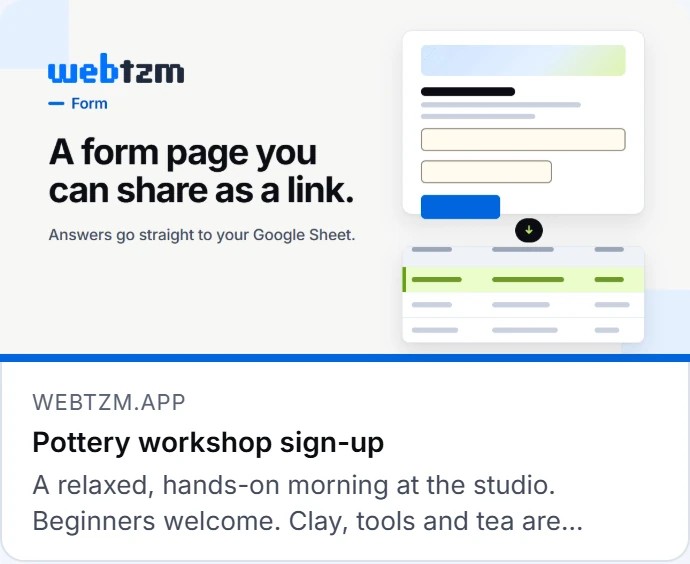
- A link pasted into a chat app shows the form's name and a picture, Webtzm's own card unless you choose one. You can also set your own title, description and picture for the preview Pro.
- Prefilled links
- Add answers to the end of a link and the visitor opens the form with those fields filled in. In the page editor, Copy a prefilled link builds one from sample answers you type; nothing typed there is saved or sent. Hidden, file upload, consent and grid questions are never prefilled, and the answers sit in the address, so do not put anything private in one.
 Open full size
A page is for the people you send it to. Search engines are asked not to list it.
Where the responses go
Responses land in the same Google Sheet as the connection's embedded form, in the same columns, and appear in the same Submissions list. You do not add webtzm.app to the connection's websites: the page is already allowed to send to its own form.
A response from a page counts toward the connection's monthly accepted-submission allowance, the same as one from a form on a website. There is no separate meter and no separate limit. Delivery, retries and the words on each state work as they do everywhere else; What a state means lists them.
Make it yours
- Themes
- Twelve themes, each in light and dark, shown in light, dark or the visitor's own colour mode. A left or centred header, your own submit button label and a formatted description.
- Your own look Pro
- An accent colour, corners and fonts; a logo, a cover and a page background (a colour, a gradient or a picture); and button, card, page-width and field styles.
- After a response Pro
- A thank-you heading, a footer line of your own and a button to send another response. Without them, visitors see the standard thank-you message.
- Longer forms Pro
- Split a form into pages, with an optional rule that skips a page based on an earlier answer.
- The Made with Webtzm link
- A small link sits at the foot of the page. You can remove it Pro.
A control that needs Pro carries the same Pro badge in the page editor, so you can see what is there before you choose a plan. Plans and limits sets the plans side by side.
Closing rules Pro
A page can stop taking responses by itself. These are in the page editor's Closing group and apply to the Webtzm page only: a form on your own website keeps taking responses.
- Close on
- A date and time in your own time zone, up to two years ahead.
- Stop after
- A number of responses. Webtzm counts responses to the page from the moment you set the limit, and shows how many have arrived so far. Your own test submissions are not counted.
Once a page is closed, a visitor sees This form is closed. and, for a date, the day it stopped taking responses. A date or limit you set keeps being enforced if you later leave Pro, because it protects you; you can clear it at any time.
If your workspace leaves Pro, a multi-page form keeps working as one page, with each page break drawn as a section heading. Its skip rules are still honoured so nothing hidden is required, you can still edit it and take pages away, and an upgrade finds the pages as they were.