
Run it after launch
The forms are published and submissions are arriving. This is the part nobody writes a tutorial for: what to look at, what to ignore, and what actually needs you.
- The scenario
- Two or three forms live on a small business site, quietly collecting. Somebody checks in once a week and wants to know in thirty seconds whether anything is wrong.
- What you end up with
- A reliable weekly routine, and the confidence to tell a state that needs you from one that does not.
- You need
- A workflow that has received at least one submission
-
Dashboard › Overview
Read the dashboard in thirty seconds
 Open full size
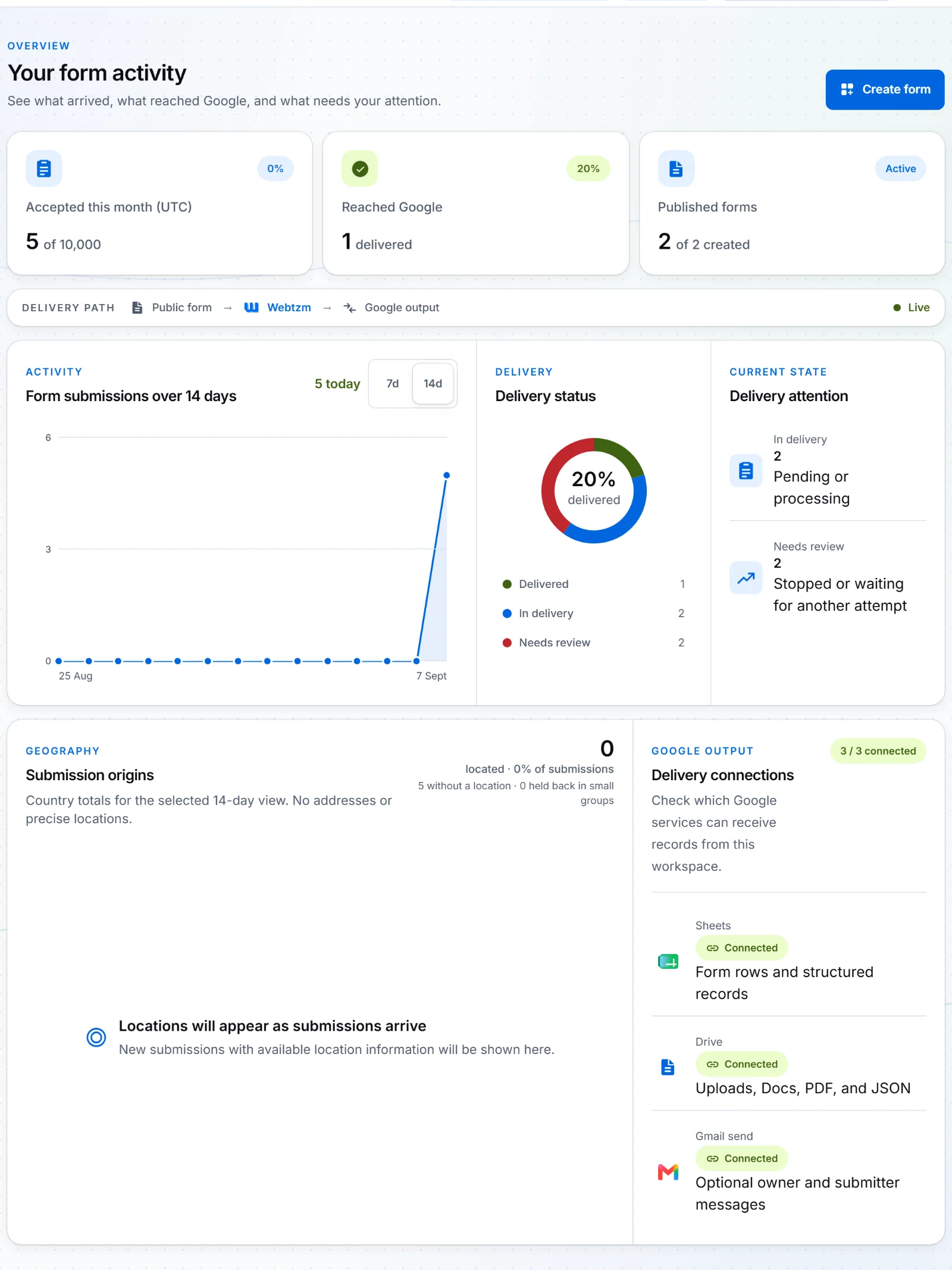
Three tiles, a chart, and one panel that is the only part demanding action. - Accepted this month against your plan's limit. Watch this if you are near it.
- Reached Google — how much of what was accepted has actually been delivered.
- Delivery attention — the only tile that ever needs you. Everything else is information.
If Needs review is zero, you are done. Close the tab.
-
Dashboard › Submissions
Tell a retry from a failure
 Open full size
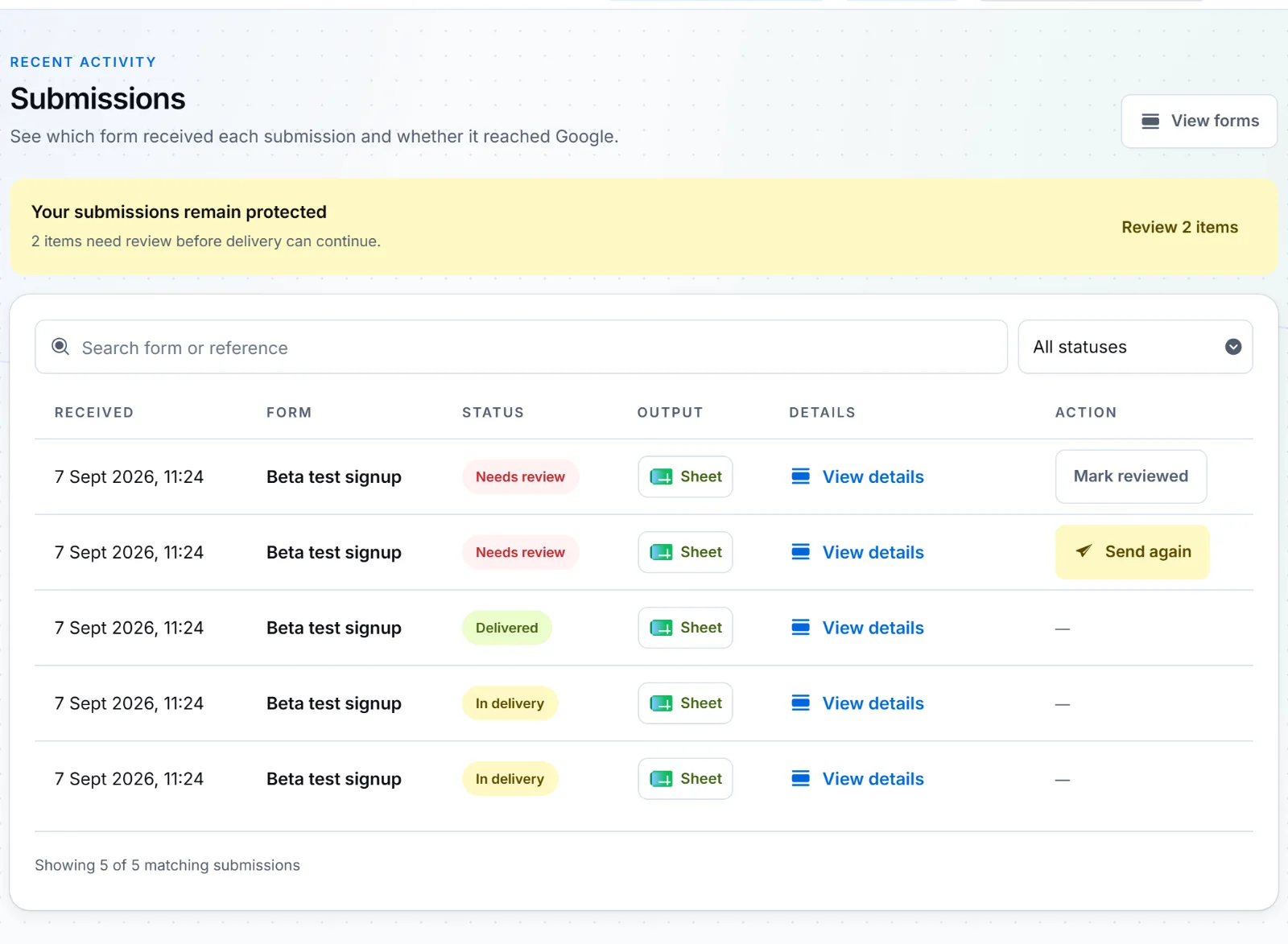
Four states, filterable. The action column is empty for anything that needs nothing from you. State What it means What you do Delivered The record reached Google. Nothing. In delivery Accepted, on its way. Nothing. Wait. Retry scheduled A temporary error, and another automatic attempt is already booked. Usually nothing. Fix a visible Google connection problem if there is one. Needs review Delivery stopped, with no further automatic attempt owed. Fix the cause, then Send again — or Mark reviewed if no retry can help. Behind those states: a customer-specific temporary failure gets another automatic attempt while fewer than five customer-specific attempts have been made and the workspace still has retry allowance. Google-wide throttling and outages use a separate recovery window, so one provider incident does not consume your allowance.
-
Dashboard › Submissions
Open a submission that needs review
 Open full size
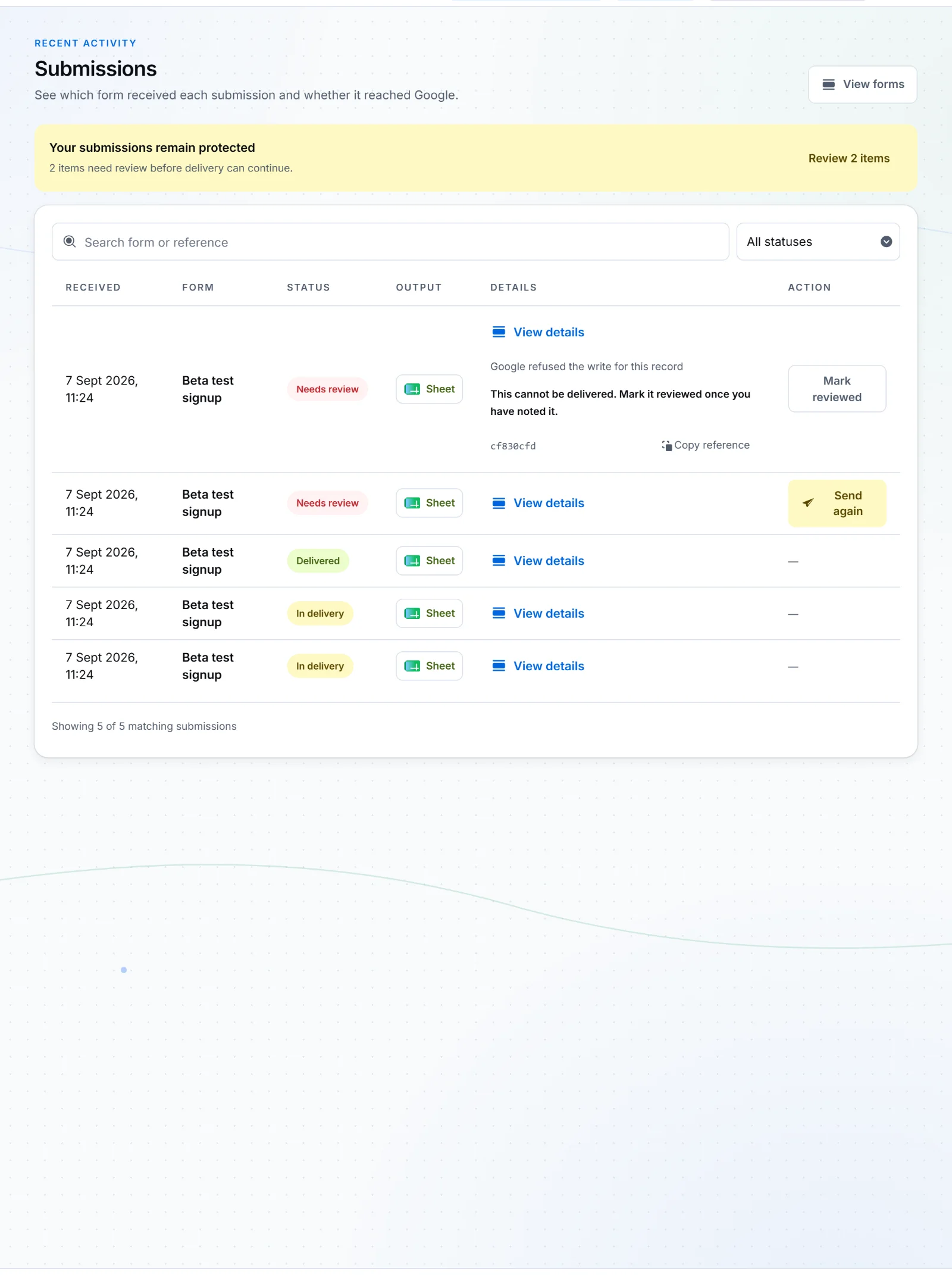
View details opens the record and the technical detail behind its state, disclosed rather than displayed. - Send again hands the same submission back to delivery. It does not create a duplicate record.
- Mark reviewed is for the cases a retry cannot fix — it clears the item without pretending it was delivered.
- A rejected submission is different, and has no retry: validation, verification and policy rejections never created an accepted submission in the first place. Correct the cause and let the visitor submit again.
-
Workspace › Manage
Pause, edit or archive a form
 Open full size
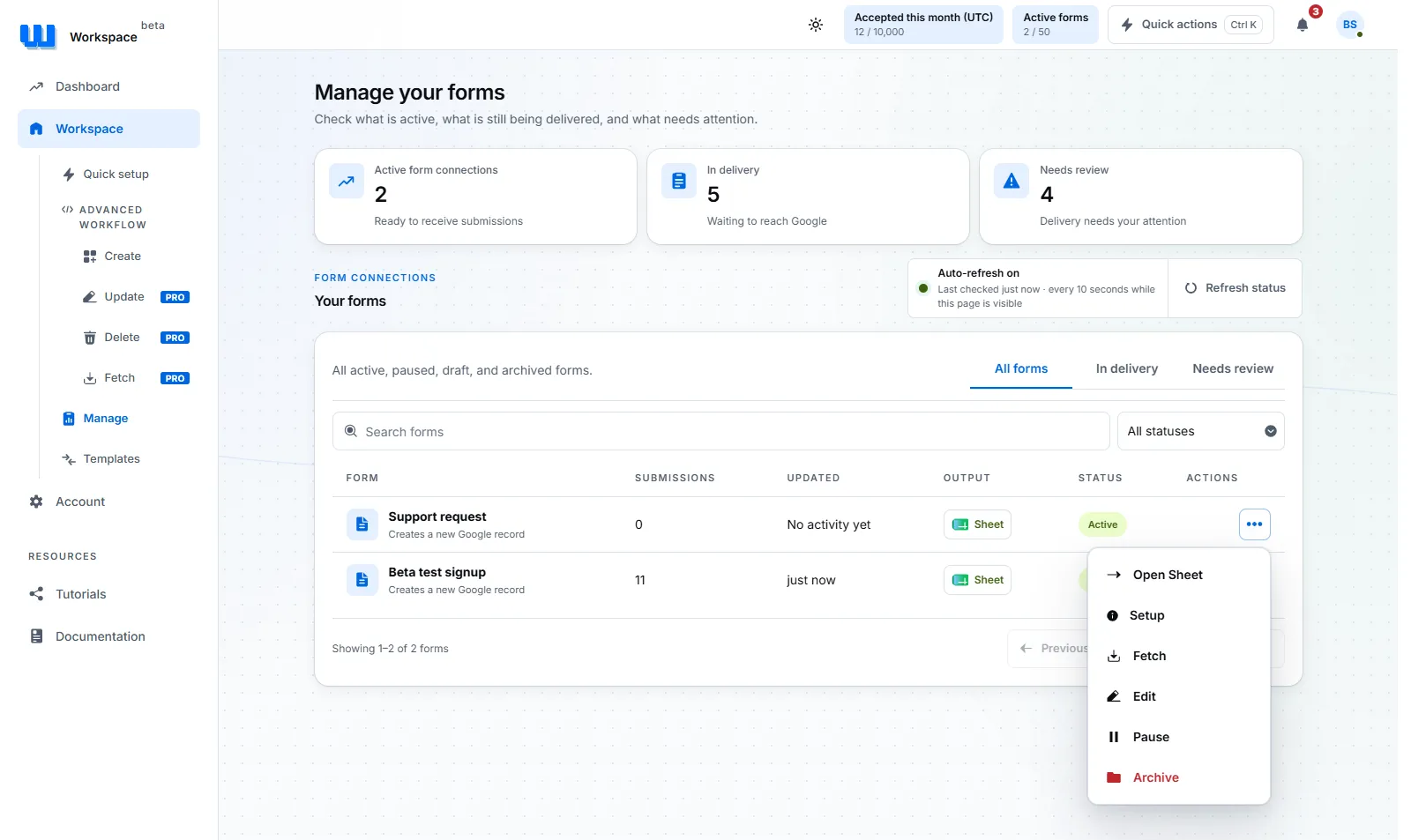
Every action a live form has is behind one menu on its own row. 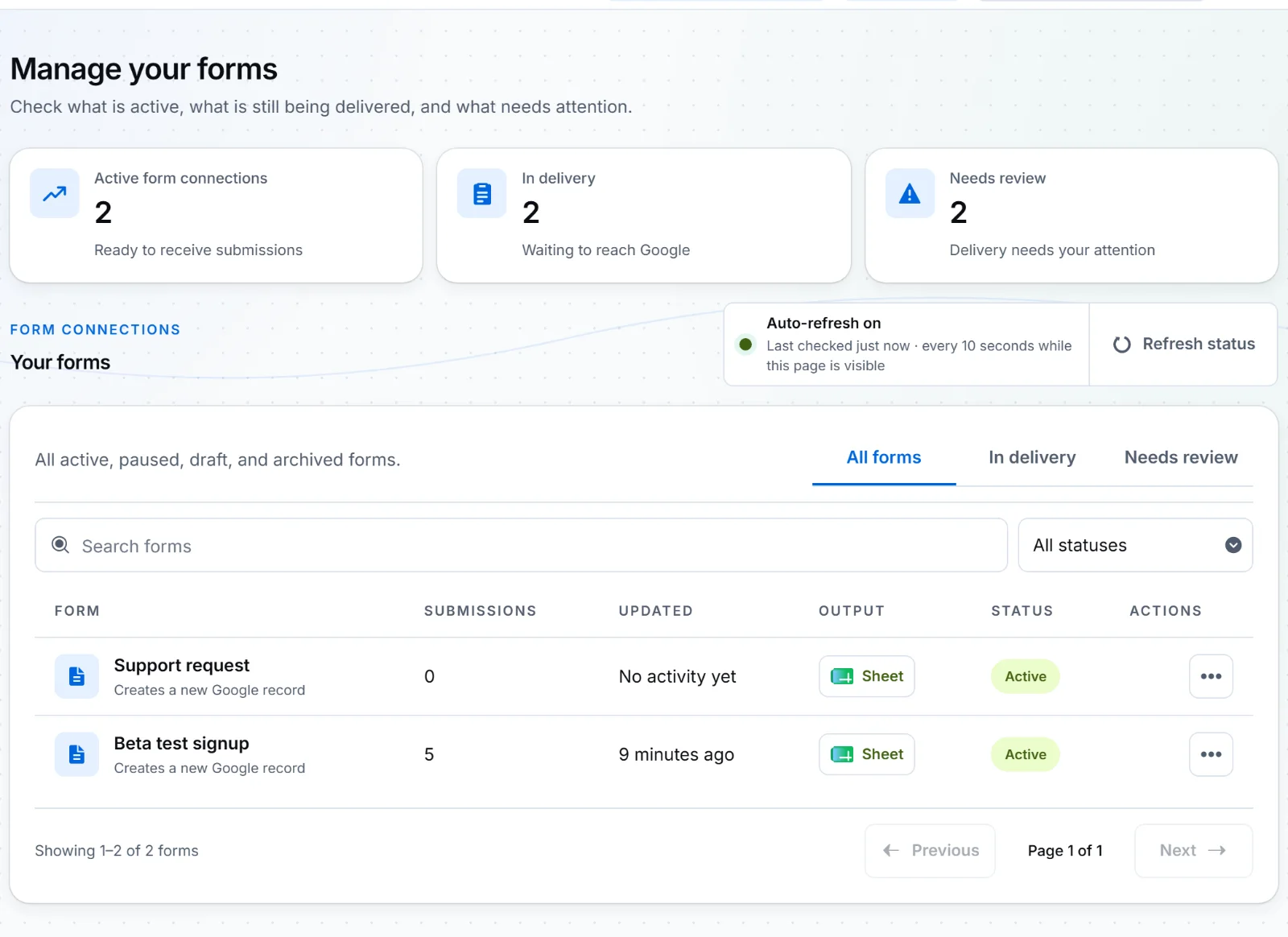 Open full size
Every form, with what it has received and where it delivers. The actions menu holds Open Sheet, Setup, Fetch, Edit, Pause and Archive. - Pause when a campaign ends. The connection stops accepting and the form on your page starts saying so.
- Edit reopens the workflow in the editor it was built in. If you change a setting, copy the generated code again and replace what you published.
- Archive when it is finished for good. An archived form frees an active slot on your plan.
-
Account › Billing
Know what your plan actually limits
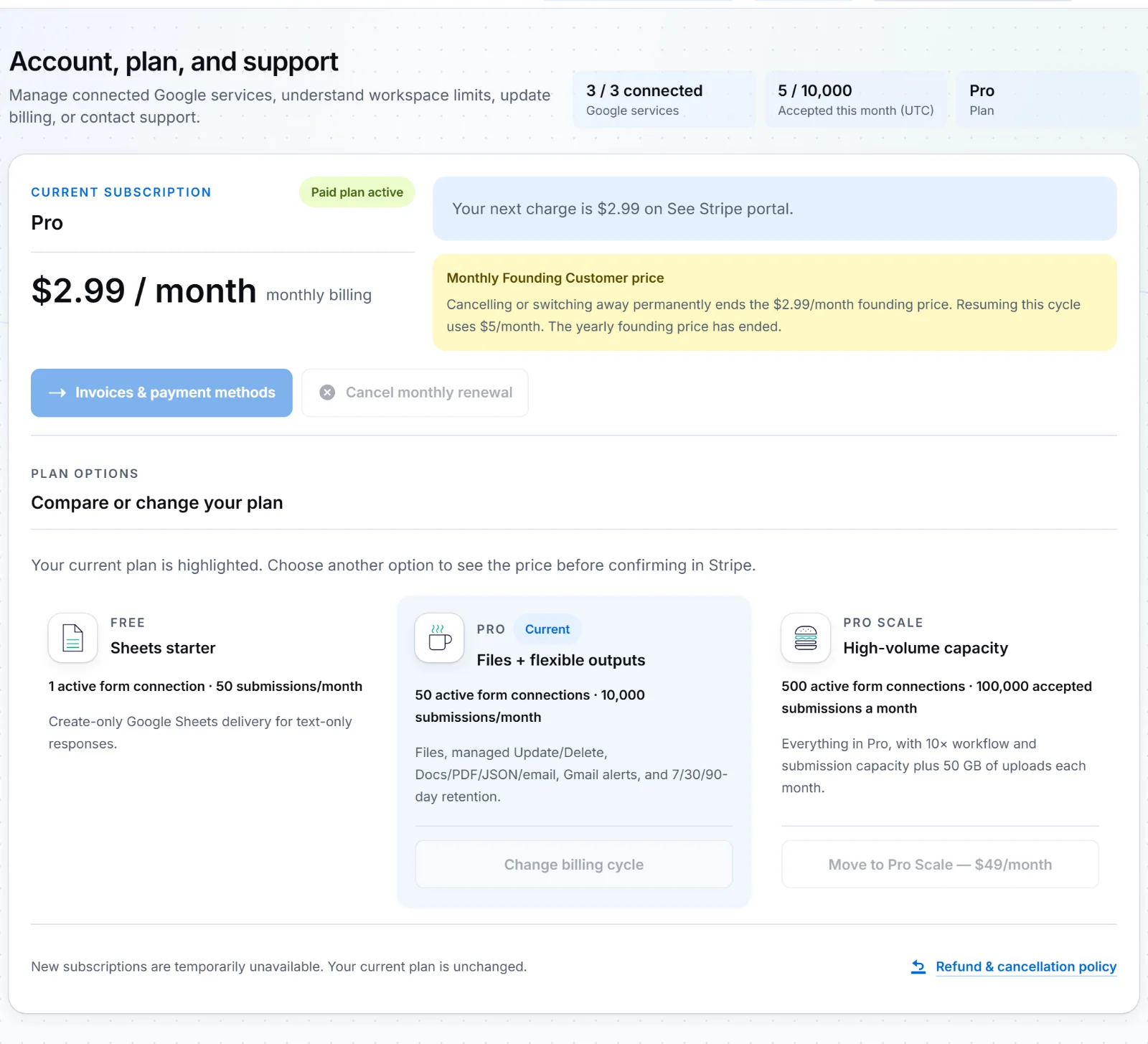 Open full size
Billing is the account's source of truth for the plan, the interval, and the next charge or plan-change date. Limit Free Pro Pro Scale Active form connections 3 50 500 Accepted submissions a month 100 10,000 100,000 Outputs Sheet row Sheet row, Doc, PDF, JSON or email All Pro outputs Operations Create Create, update, delete Create, update, delete Monthly file budget No file fields 10 GB 50 GB Allowed-domain protection, anti-spam checks, duplicate protection, automatic delivery retries and delivery status are included on every plan, Free included.
A weekly routine that takes a minute
- Open Dashboard › Overview and look at Needs review. If it is zero, stop here.
- If it is not, open Submissions, filter to Needs review, and read the first one's details.
- Fix the cause it names — most often a Google connection that was revoked, or an output that was deleted or moved.
- Send again, or Mark reviewed where nothing can be resent.
- Once a month, glance at the accepted-submissions tile against your plan limit.