
Build a registration form and confirm every sign-up
A community coding workshop runs three sessions a month. The organiser needs a clean roster, wants to know the moment somebody signs up, and wants the attendee to get a confirmation without anybody typing one.
- The scenario
- A volunteer-run workshop with limited places. Sign-ups arrive from a landing page and a couple of social posts, and the organiser wants to know which is which.
- What you end up with
- A registration form you can paste onto any page, a Sheet roster with the campaign each sign-up came from, an alert to the organiser, and a receipt to the attendee.
- You need
- Sheets and Drive connected, and Gmail sending connected for the two emails
- A Pro workspace — owner alerts and submitter receipts are Pro features
- The domain the sign-up page is published on
-
Workspace › Templates
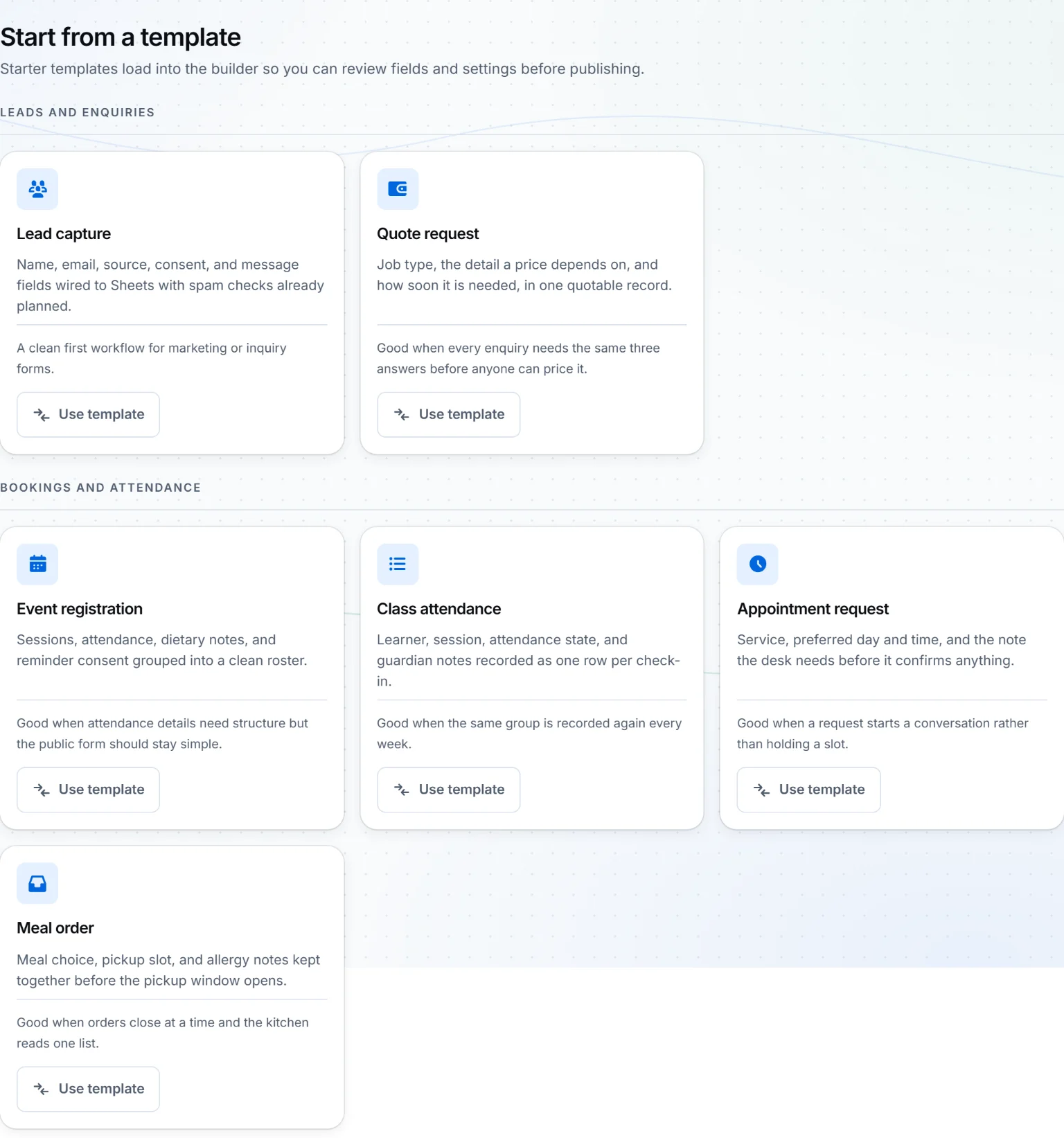
Start from the Event registration template
A template is a starting point, not a finished form. It loads into the builder with sensible fields and settings already chosen, and you change what your event actually needs.
 Open full size
Select Use template under Event registration. You land in the Advanced builder with the fields already in place. Name the workflow
Saturday coding workshop. This is the name the Sheet takes in Drive, so make it specific enough to find. -
Setup › Build
Replace the sample answers with your real ones
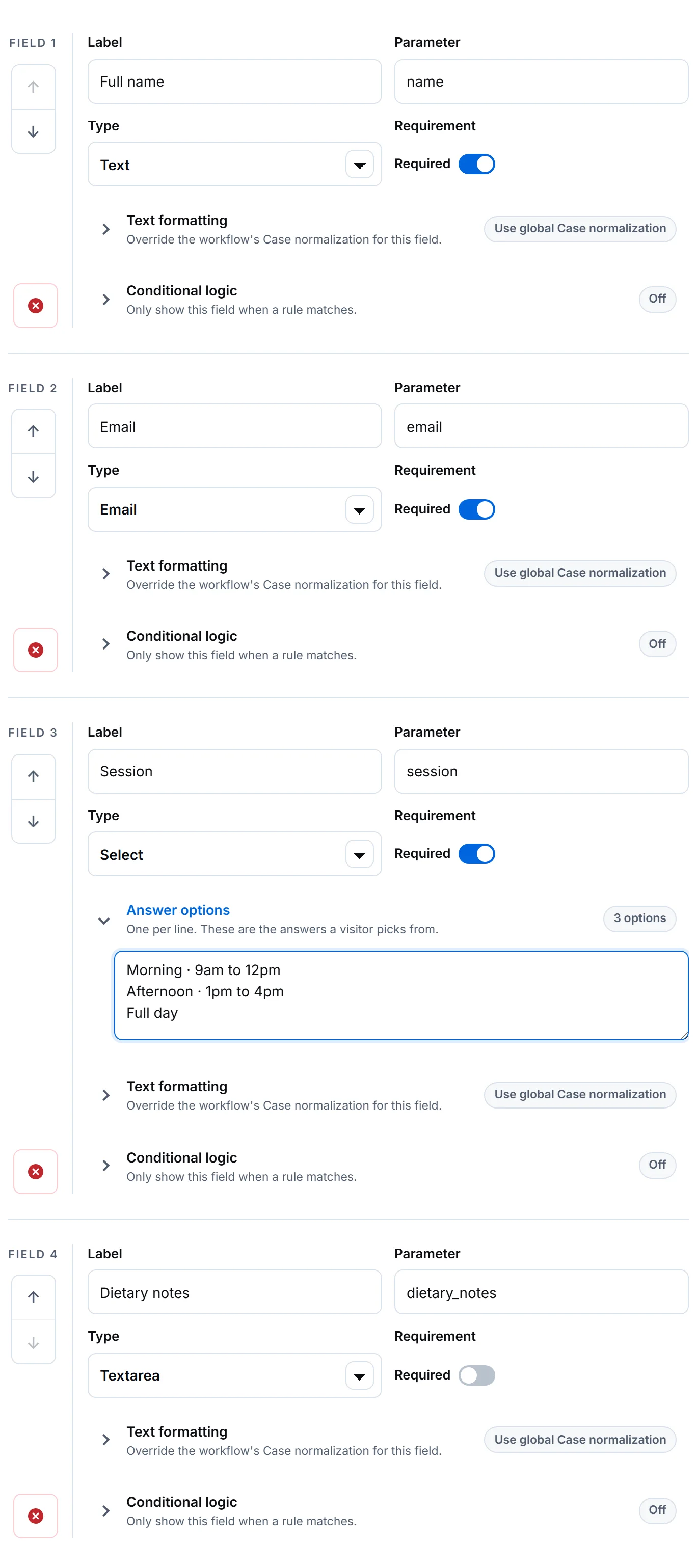
The template's Session field arrives with generic options, and the builder says so in as many words: these are sample answers, not a choice you have made. Replace them with your three sessions, one per line.
 Open full size
Each field has a Label the visitor reads and a Parameter that becomes the Sheet column header. Keep parameters short and lowercase — you will type them again in formulas. Four fields is enough for a roster: who is coming, how to reach them, which session, and anything you need to know before they arrive.
 Open full size
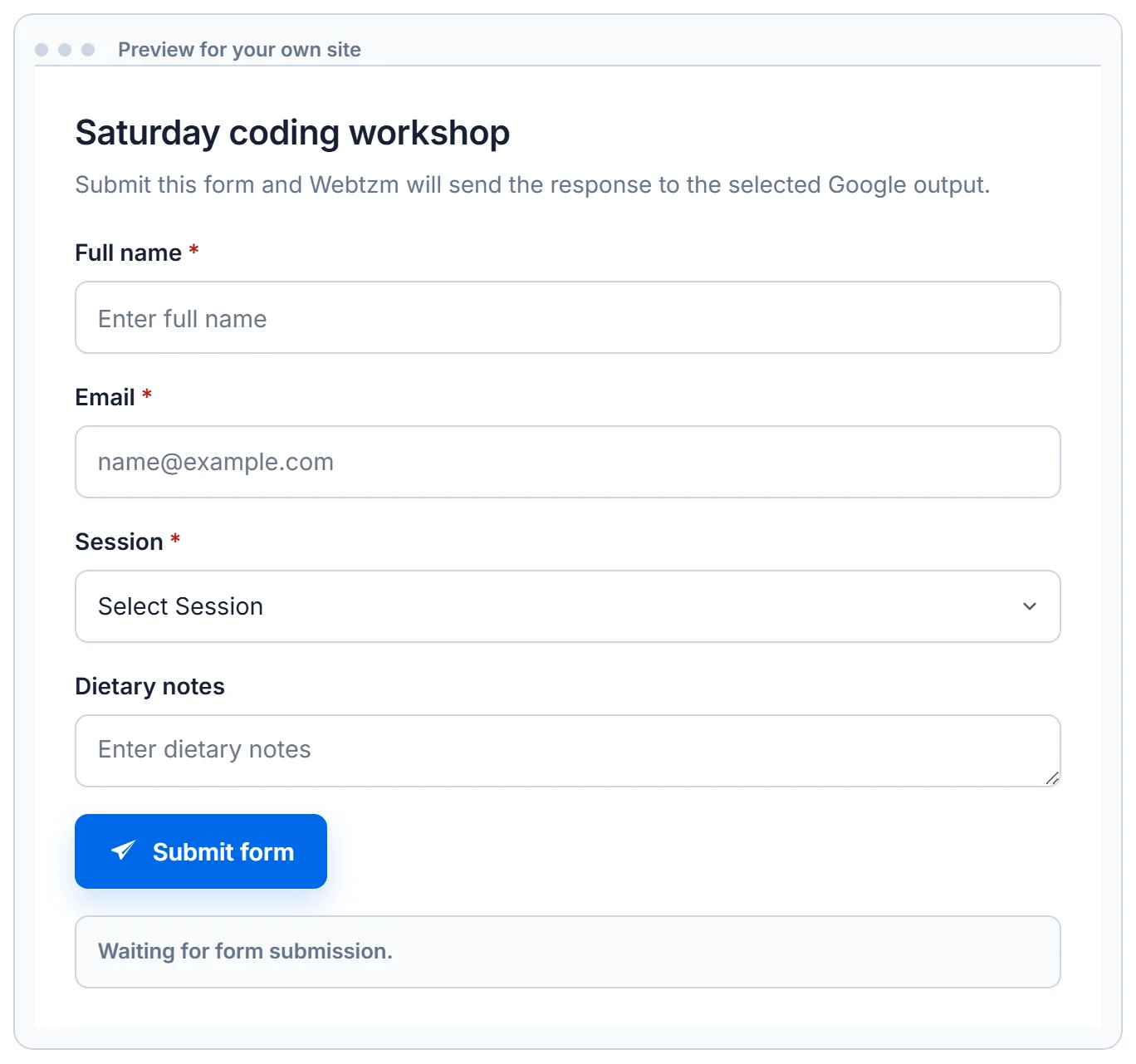
The Preview tab renders the same markup the generated code produces, so what you check here is what your page will show. -
Behavior › Security & privacy
Add the domain and leave the spam check on
 Open full size
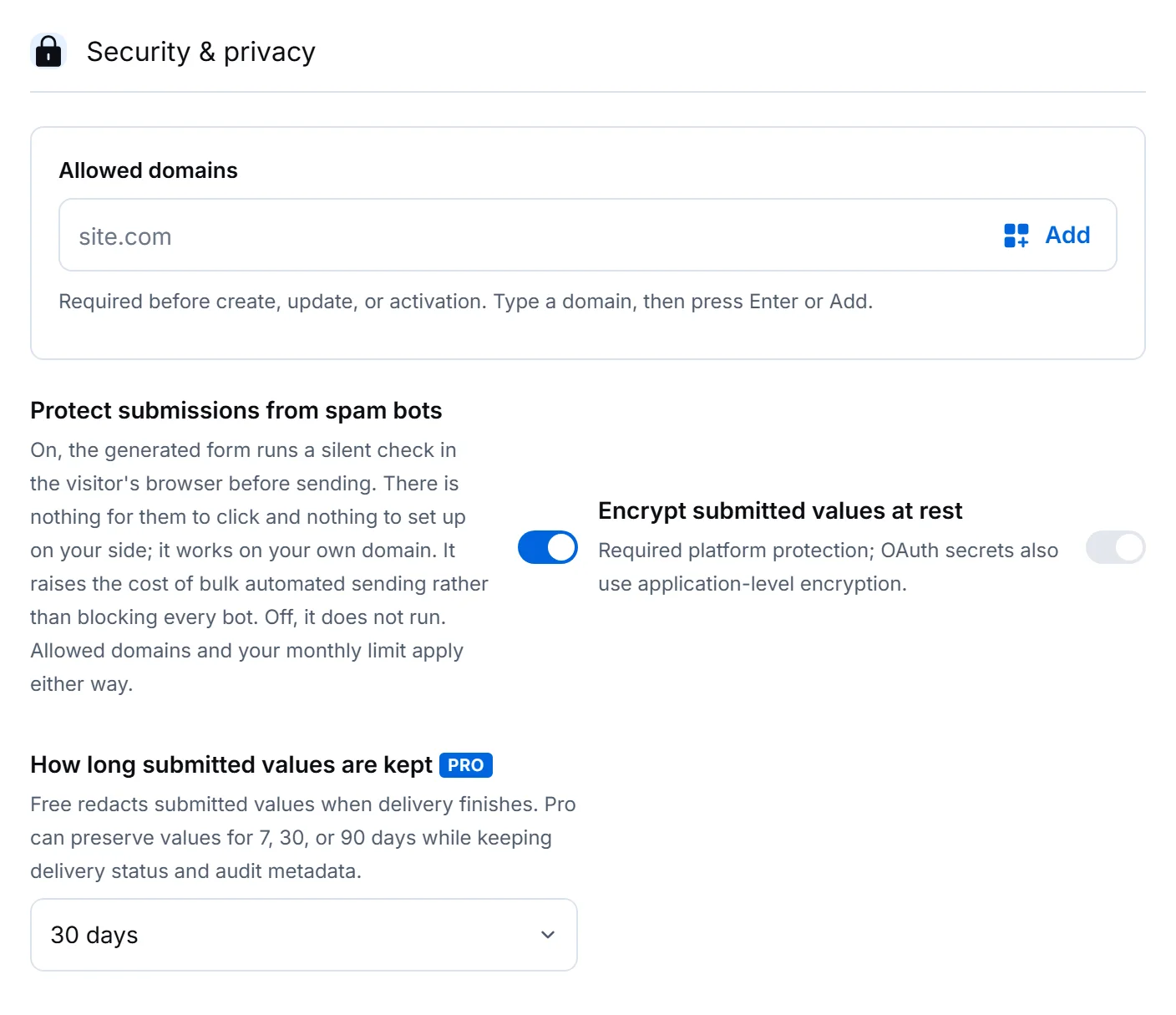
Allowed domains are required before create, update or activation. The workflow will not save without at least one. Protect submissions from spam bots is on by default and there is nothing to set up: no key to obtain, no account to create, no domain to register anywhere. It works on whatever domain you publish to, from the moment you publish.
Your visitors see nothing. When somebody starts filling in the form their browser quietly works on a short puzzle and sends the answer with the submission, normally long before they press send. Somebody who submits instantly may briefly see Finishing a quick anti-spam check… and then goes through as usual.
How long submitted values are kept is a Pro choice between 7, 30 and 90 days. It governs Webtzm's own copy of what was submitted, not the Sheet — the roster keeps its rows either way.
-
Behavior › Sheet columns
Decide what else the roster records
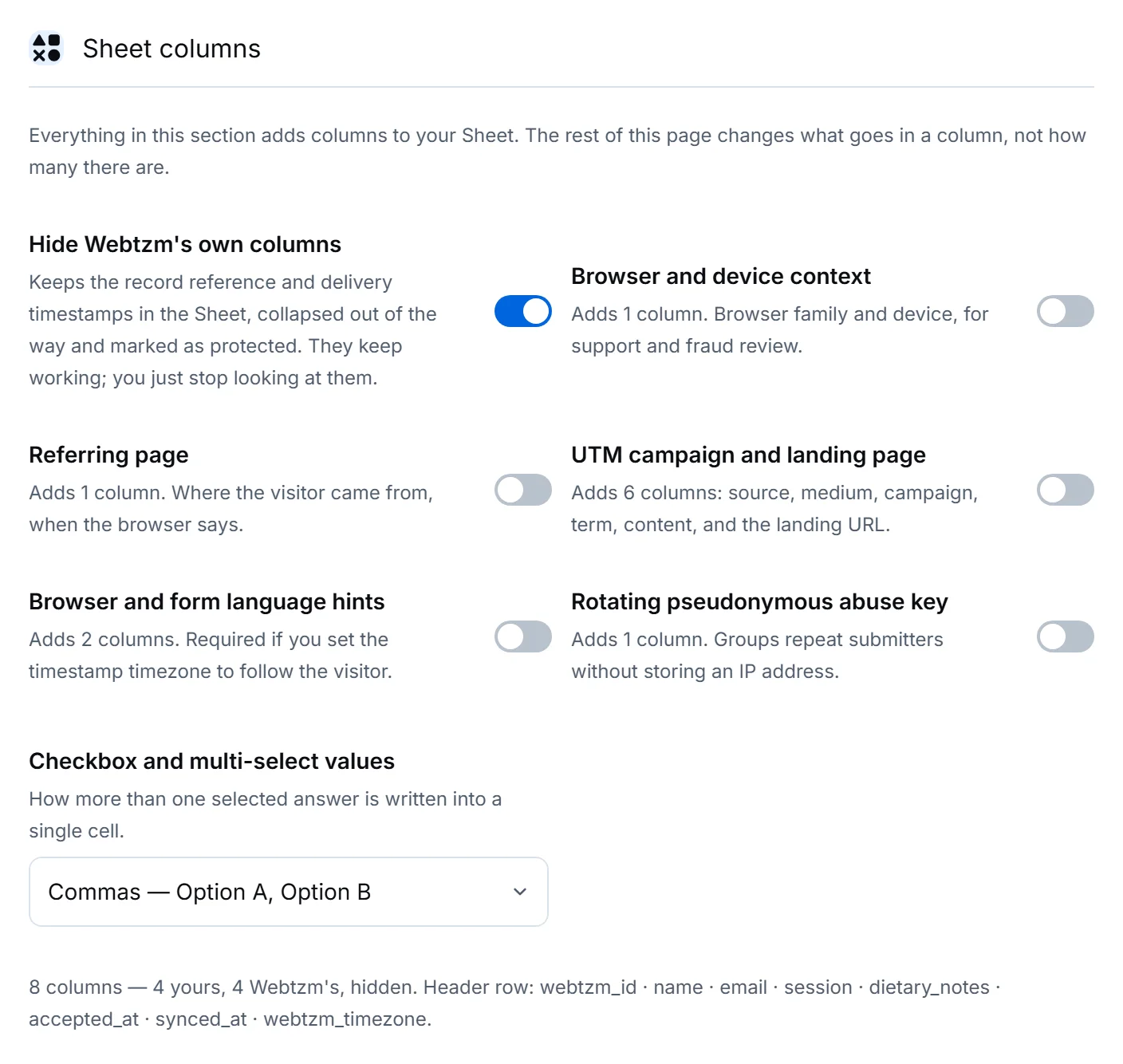
This is the only section that changes how many columns your Sheet has. Everything else changes what goes in a column.
 Open full size
Each switch says how many columns it adds, and the summary underneath spells out the header row you will actually get. For a workshop that advertises in two places, turn on UTM campaign and landing page. It adds six columns — source, medium, campaign, term, content and the landing URL — and answers “which post filled the morning session” without anybody guessing.
Leave Hide Webtzm's own columns on. The record reference and delivery timestamps stay in the Sheet, collapsed out of the way and marked as protected. They keep working; you just stop looking at them.
-
Behavior › Language & time
Set the timezone the roster is read in
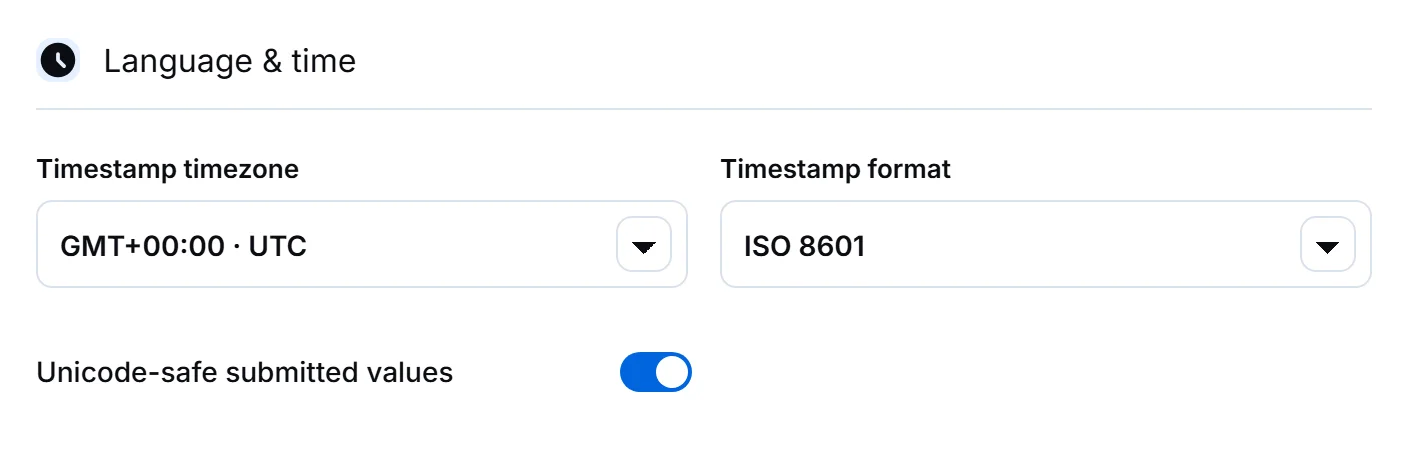
Timestamps default to UTC, which is correct and unreadable. A workshop organiser reading “09:00” wants their own clock, not Greenwich's.
 Open full size
Choose your own city. Visitor browser timezone is also available, and needs Browser and form language hints switched on under Sheet columns. -
Behavior › Delivery & alerts
Turn on the alert and the receipt
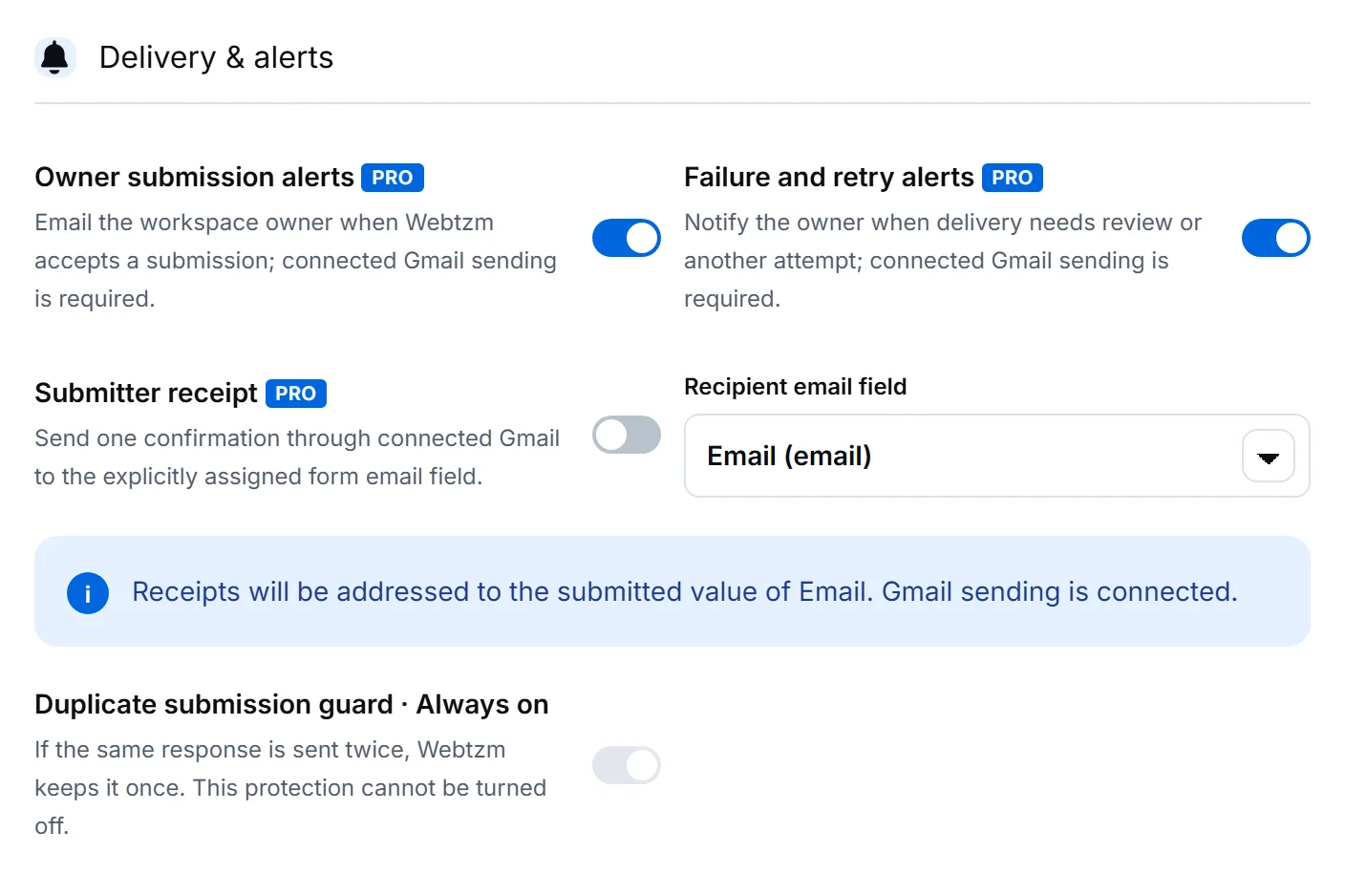
Two different messages, to two different people, for two different reasons.
 Open full size
The recipient of a receipt is a field on your own form, chosen explicitly. Webtzm will not guess which field holds an email address. - Owner submission alerts tell the organiser that somebody signed up.
- Failure and retry alerts tell the organiser when a delivery needs review. Leave this on — it is how you find out about a problem without watching the console.
- Submitter receipt sends one confirmation to the attendee. Choose Email as the recipient field.
- Duplicate submission guard is always on and cannot be turned off. Send the same response twice and Webtzm keeps it once.
-
Review & create
Review, create, and copy the code
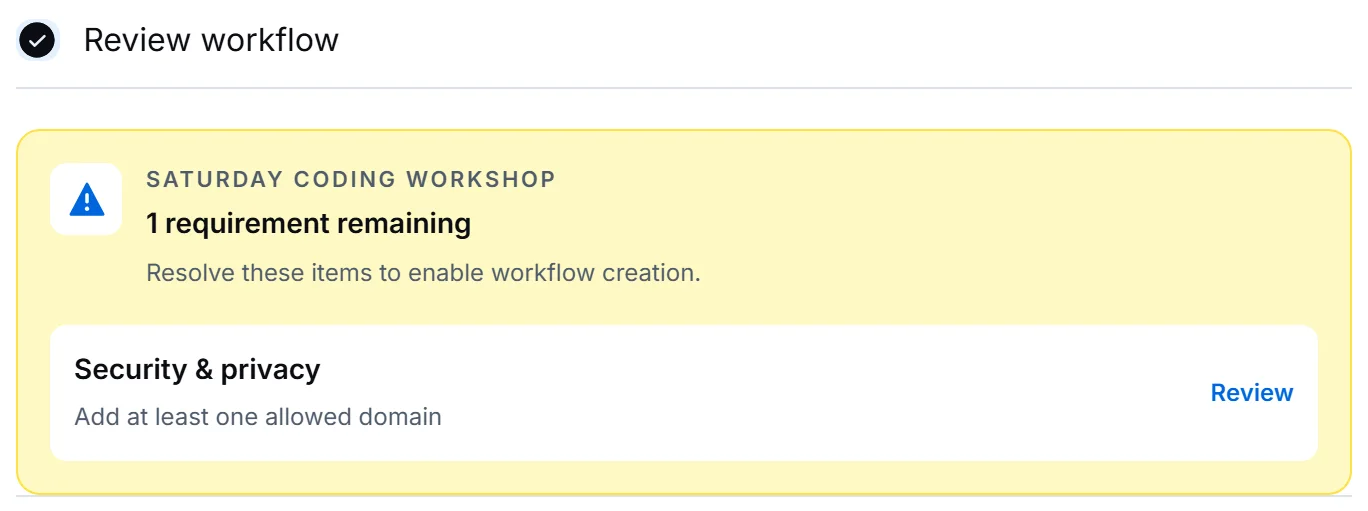
The review step lists anything still outstanding, next to the step it belongs to. Resolve every one, then create the workflow.
 Open full size
An outstanding requirement is an unmade choice, not an error. The panel names the step that resolves it. Once created, open the Code tab. This is the exact markup below — generated from the fields and settings you just chose, with your own workflow id in the
data-webtzm-formattribute.Generated form HTML — copied from the console, unedited <form class="wtzm-form" action="https://webtzm.com/submit" method="post" data-webtzm-form="YOUR_FORM_ID" data-wtzm-enhancement="client" data-wtzm-format-events="submit" data-wtzm-validation-style="red" data-wtzm-block-invalid="true" data-wtzm-validation-messages="true" data-wtzm-status-feedback="true" data-wtzm-lock-submit="true" data-wtzm-text-trim="true" data-wtzm-text-clean="true" data-wtzm-text-truncate="false" data-wtzm-text-max-chars="50000" data-wtzm-capture-referrer="false" data-wtzm-capture-utm="false" data-wtzm-capture-locale="false" data-wtzm-timestamp-zone="UTC"> <div data-wtzm-field="name"> <label for="name">Full name <span class="wtzm-required" aria-hidden="true">*</span></label> <input id="name" type="text" name="name" placeholder="Enter full name" required> </div> <div data-wtzm-field="email"> <label for="email">Email <span class="wtzm-required" aria-hidden="true">*</span></label> <input id="email" type="email" name="email" placeholder="name@example.com" required> </div> <div data-wtzm-field="session"> <label for="session">Session <span class="wtzm-required" aria-hidden="true">*</span></label> <select id="session" name="session" required> <option value="">Select Session</option> <option value="Morning · 9am to 12pm">Morning · 9am to 12pm</option> <option value="Afternoon · 1pm to 4pm">Afternoon · 1pm to 4pm</option> <option value="Full day">Full day</option> </select> </div> <div data-wtzm-field="dietary_notes"> <label for="dietary_notes">Dietary notes</label> <textarea id="dietary_notes" name="dietary_notes" rows="4" placeholder="Enter dietary notes"></textarea> </div> <p data-wtzm-send-status role="status" aria-live="polite"></p> <button class="wtzm-submit" type="submit">Submit form</button> </form> <link rel="stylesheet" href="https://webtzm.com/assets/styles/public-form.css?v=20260906-public-form-10"> <link rel="stylesheet" href="https://webtzm.com/assets/styles/embed-files.css?v=20260906-public-form-10"> <script src="https://webtzm.com/assets/enhance-files.js?v=20260906-public-form-10" defer></script> <script src="https://webtzm.com/assets/enhance.js?v=20260906-public-form-10" defer></script> -
Your own site
Publish it, and see what an attendee sees
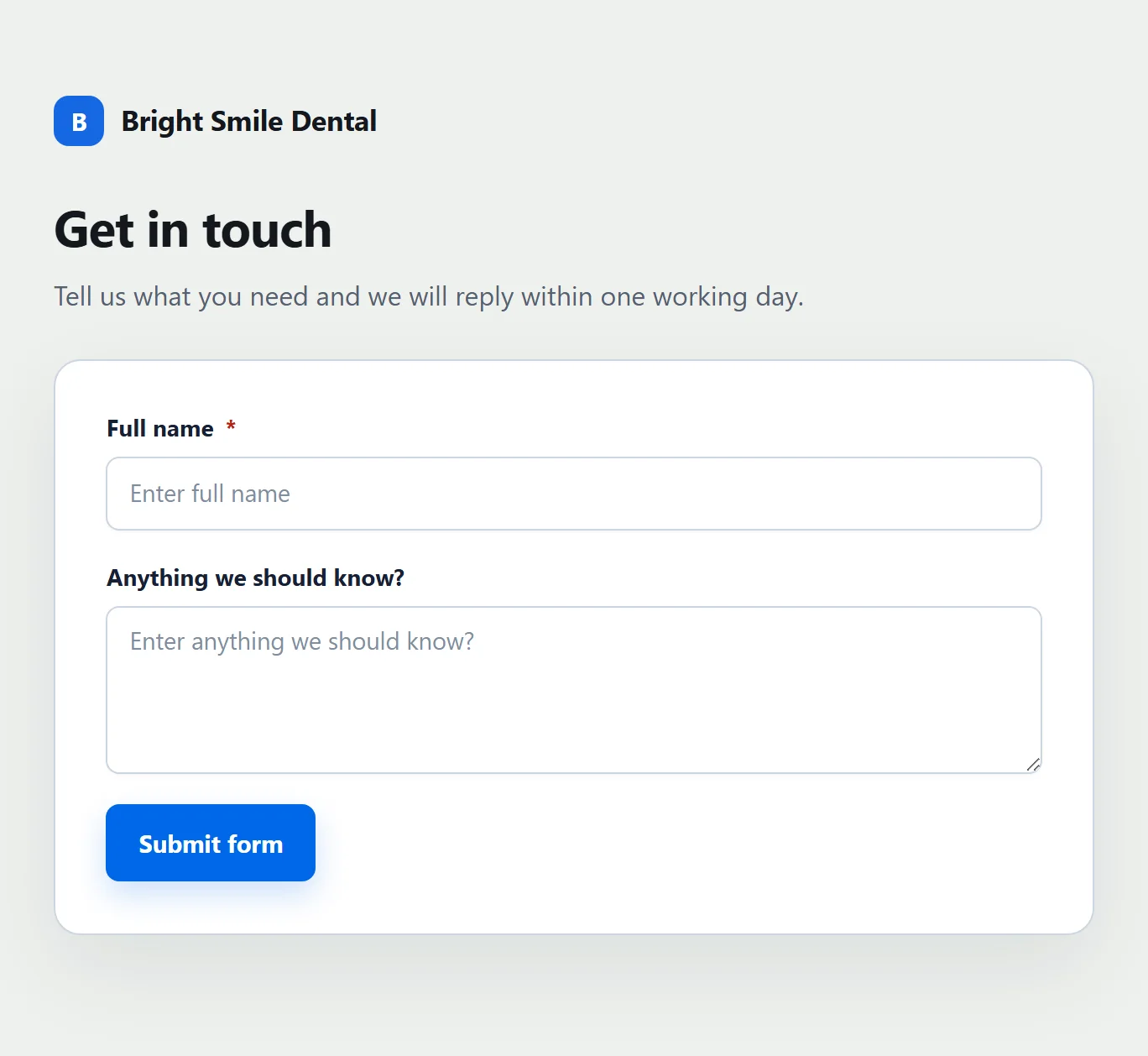
Paste the block onto your sign-up page. The two stylesheets and two scripts do the visible work: they style the form, validate it in the browser, run the anti-spam check, and report the result inside the page.
 Open full size
The form as published, using the stylesheet the generated code links. It inherits your page's width and typography rather than imposing a widget. 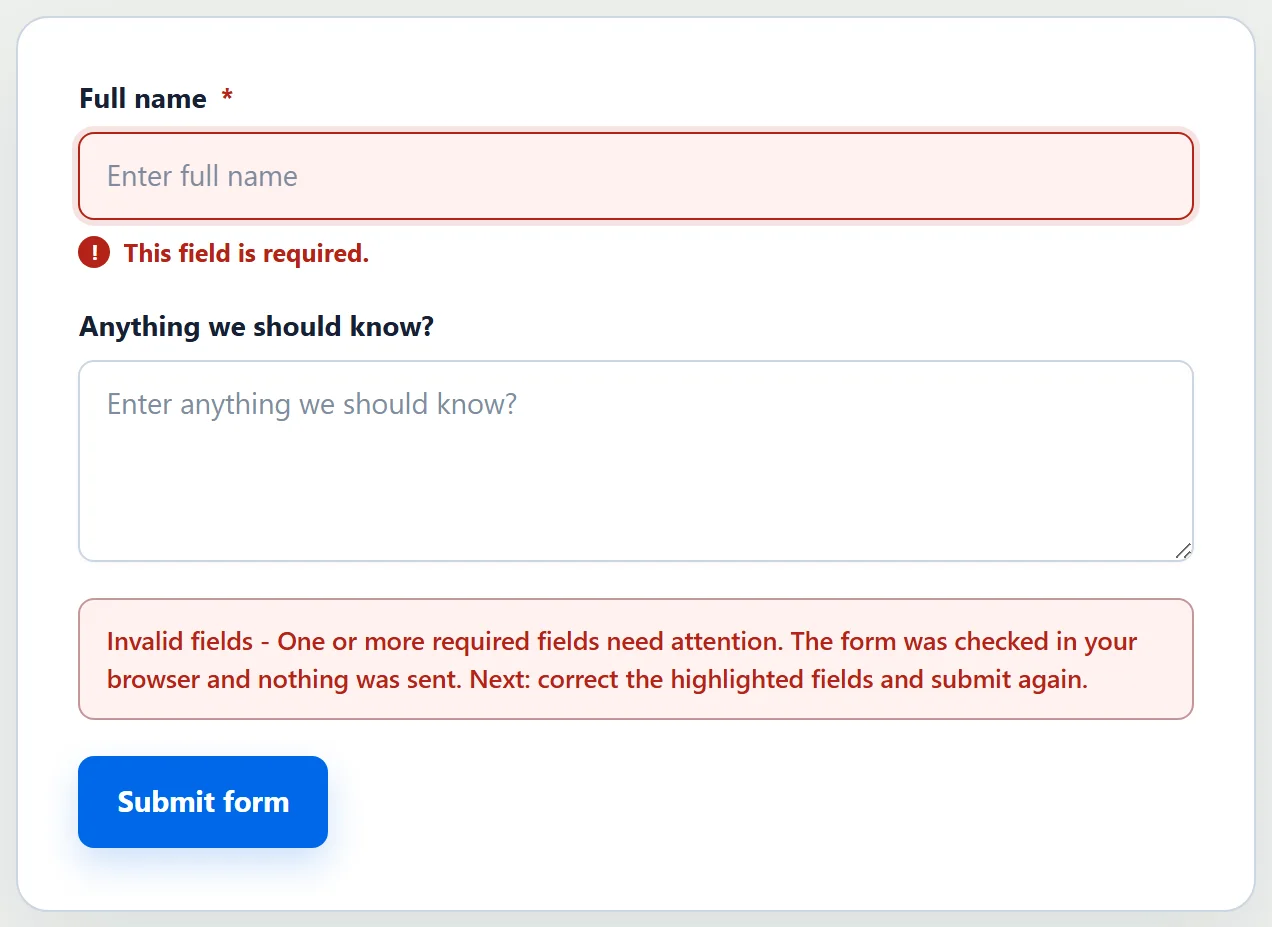 Open full size
A required field left empty. Nothing was sent, and nothing was recorded — this is a rejection before acceptance, so there is no submission to retry. 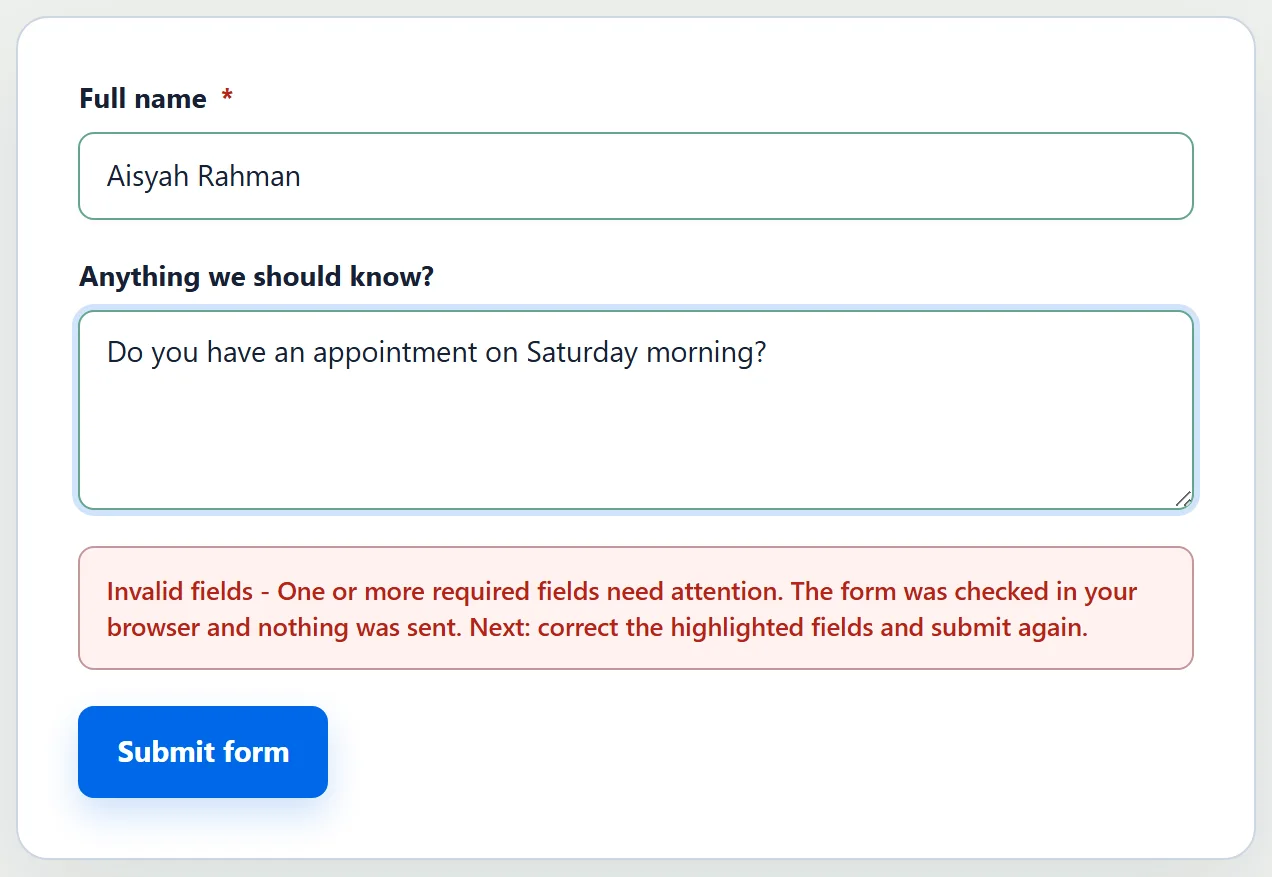 Open full size
Filled in and ready. The anti-spam check has already been solved in the background by this point, so pressing send does not wait for it. 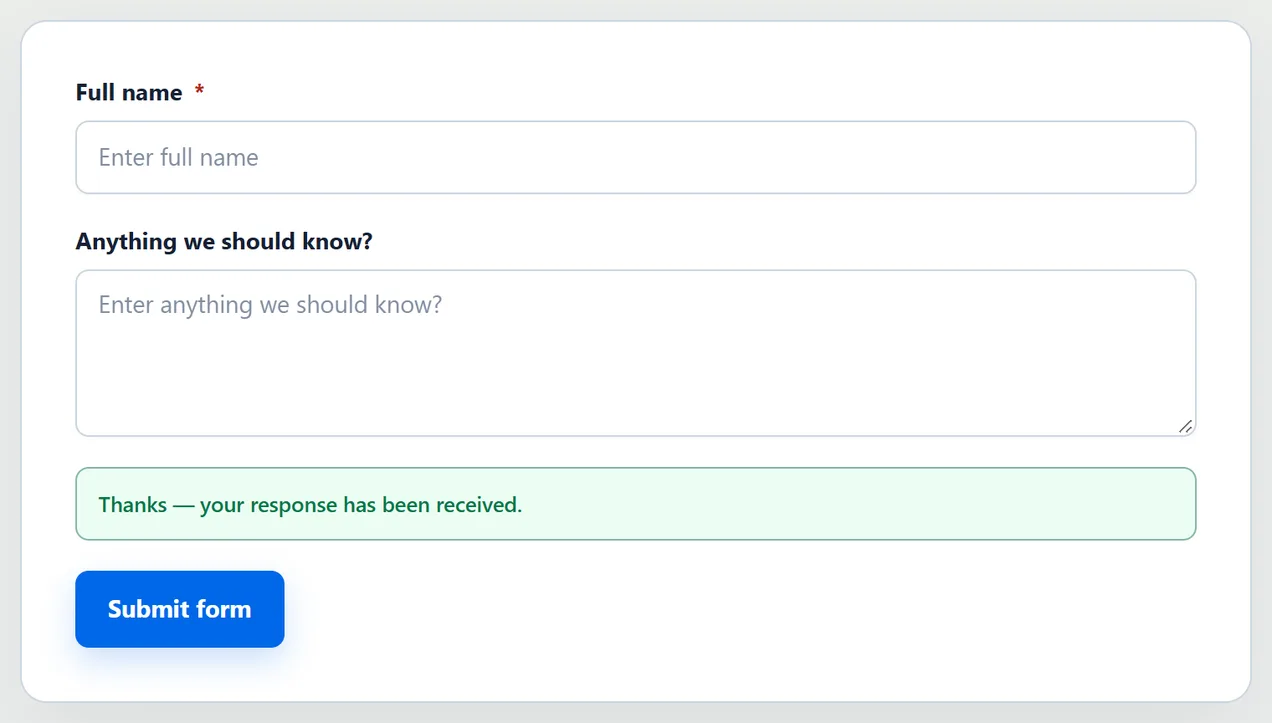 Open full size
A real accepted submission, shown in the plain default text. A workflow's own Success message, if one is set, replaces this. Delivery is confirmed on your side, in Submissions.
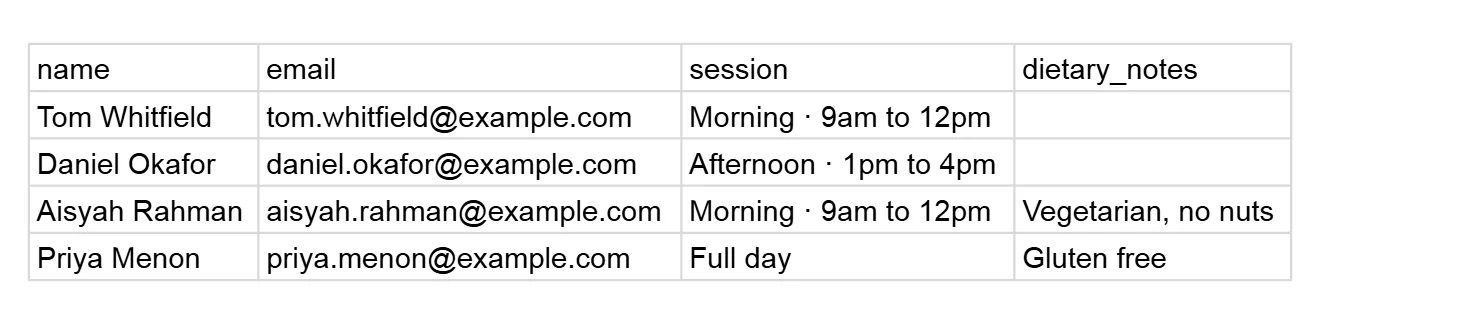
What the organiser ends up with
One spreadsheet, one row per registration, and two emails per registration that nobody had to write.
| Column | Source | Note |
|---|---|---|
webtzm_id | Webtzm | Hidden and protected. Needed if you later let attendees change their own booking. |
name, email, session, dietary_notes | The form | Named after each field's parameter. |
utm_source … landing_url | UTM switch | Six columns. Which post or page the sign-up came from. |
accepted_at, synced_at | Webtzm | Hidden. Written in the timezone you chose. |
 Open full size
The attendee gets a confirmation of their own, and it is deliberately thin:
Subject: We received your submission — Saturday coding workshop

Your submission to Saturday coding workshop has been received.

Reference: 83215b5a-e476-4773-b522-f36bace78aec

This confirmation intentionally does not repeat your submitted answers.If you want a tidy version to share with volunteers — only the columns that matter, under readable names — the workflow's Setup panel can add a clean view: a second tab in the same spreadsheet, live rather than copied, which updates itself and can never disagree with the record. It is for reading and sharing, not for editing.