
What you will take away
Drive has no public upload link, so the client needs something in front of it that writes on your behalf.
A file with no answers around it creates work rather than removing it. Collect the context in the same step.
The client never authenticates, never sees a folder, and never holds anything reusable.
Letting a client upload to your Drive without a Google account
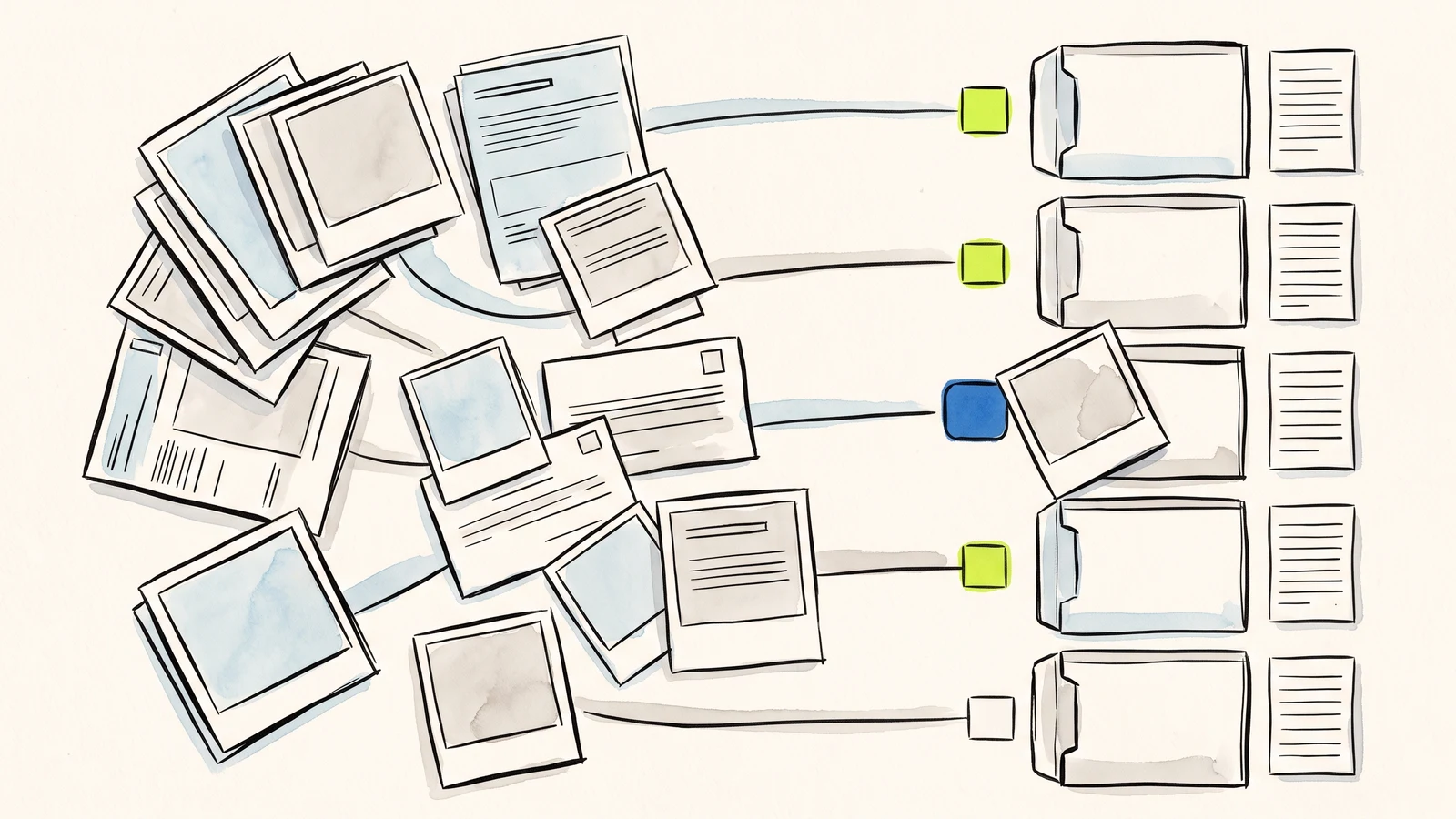
A client with no Google account can put a file into your Google Drive, but not through Drive's own sharing, which has no public upload link and requires an account for anyone you give edit access to. It works by putting a form in front of Drive: the client fills in your form, and a service you have authorized against your own Google account writes the file into your folder on your behalf.
The distinction that matters is who is doing the writing. The client is not being let into your Drive. You are, and their submission is what triggers it. That is why no account is needed on their side, and it is also why they cannot see, list or reach anything else you keep there.
Why Drive's own sharing does not do this
People try Drive first, reasonably, and it does not work. A shared folder with edit rights lets somebody add files, but they have to sign in to a Google account to exercise that right, which is the thing you were trying to avoid. Drive has no equivalent of a Dropbox file request link that a stranger can just drop a file into.
The nearest built-in option is Workspace visitor sharing, which does let a non-Google user work with a shared item. It needs a paid Workspace plan, it works by emailing an invitation to a named address, and the visitor verifies with a PIN before they get access for a limited window. That is a good answer for a specific collaborator you already know by name. It is not an answer for whoever clicks the button on your website.
And even if it were, sharing a folder is the wrong shape for client work. It gives you a folder that fills up with files whose names were chosen by the people who sent them, with no record of which job, which client or which request each one belongs to.
What the file-request tools do, and what they leave out
There is a whole category of product for this, and it is worth being fair to it. Tools like SendToDrive, FileCollect, EZ File Drop and File Request Pro give you a hosted upload page, take files from people with no Google account, and put them into your own Drive. That last part is the important one and not all "no sign-in" tools do it, so a tool from this category is a genuine answer to the question as asked.
What they leave out is the form. You get an upload page — theirs, on their domain, with your logo on it if you pay for that — and what arrives is files. If the file is all you need, that is a clean and simple answer, and you should probably use one.
The trouble starts when the file is not all you need, which for client work it usually is not. A signed contract needs to be attached to a matter. A photograph of damage needs a description and a date. A manuscript needs the author and the title they submitted it under. A design brief is mostly the brief, with a file attached. In every one of those, sending the client to a separate upload page means you now have two things to reconcile: a form response somewhere, and a file somewhere else, joined by nothing but a filename and your memory.
So the gap is narrow and specific. Not "uploads without an account" — several products do that. It is uploads without an account, on your own page, arriving attached to the answers that explain them.
Building it
Take a real case: a studio collecting a brief and reference material from a new client. What you want back is who they are, what they want, when they need it, and the files — as one thing, not four.
<form action="YOUR_SUBMIT_URL" method="POST"
      data-webtzm-form="YOUR_WORKFLOW_ID">
  <input name="client" placeholder="Company or your name" required>
  <input name="email" type="email" required>
  <input name="deadline" type="date">
  <textarea name="brief" placeholder="What are we making?" required></textarea>
  <input name="references" type="file"
         accept=".pdf,.jpg,.jpeg,.png" multiple>
  <p data-wtzm-send-status></p>
  <button>Send brief</button>
</form>
<script src="YOUR_SCRIPT_URL"></script>
That is the whole page-side build. The three placeholder values are handed to you when you create the workflow. The script manages the upload, reports progress into the status element while the files are moving, and clears the form when it is done.
Underneath, the answers are submitted first with a short description of each chosen file, and the reply hands back one write-once address per file for the browser to send the bytes to. The practical benefit of that order is that a client who picks a file the form does not accept is told immediately, before anything uploads, rather than after a slow transfer over a hotel connection.
It also means a failed upload does not cost you the enquiry. The submission is accepted before the files move, so if the transfer dies halfway you still have the client, the email and the brief, flagged as having an attachment that did not arrive, and you can ask them to send it again.
Naming and context, so you can find it in March
Files go into a folder in your own Drive named after the workflow, sitting inside a single Webtzm folder in your Drive. You can point the workflow at a folder you already use instead.
The part that makes this different from a folder of uploads is the record. When the workflow delivers to a Google Sheet, each file slot gets its own column named for the field it came from, holding the link to the file in Drive, on the same row as the client name, the email, the deadline and the brief. You read the row and open the attachment from it. You are never looking at a file called final_v2.jpg trying to remember who sent it.
If a single readable record suits the work better than a list, a workflow can produce a document per submission instead, with the answers merged into a template you have laid out and any submitted photographs placed inside it. A workflow delivers one output, so this is a choice rather than an addition: pick the one your next action needs.
What a stranger can and cannot do
You are putting an upload field on a public page, so it is worth knowing exactly what you have opened.
Each file is authorized individually. The address the browser is given covers one file, on one submission, at the size it declared, into a place already reserved for it — and it expires shortly after it is issued. It cannot be reused, redirected, or pointed at a second file.
Nothing is browsable. There is no folder listing, no path to walk, and no way to read anything already in your Drive. The authorization held against your Google account is limited to files created through it, so the rest of your Drive is not visible to the service either.
Each field declares which extensions it accepts, and the declared type has to agree with the extension. Executable and script types are refused unless you have deliberately allowed them.
There are ceilings on file size, on the number of files a field takes, and on the total for one submission, and a field can be tightened below them.
File upload allowances are part of the plan a workspace is on; the pricing page carries the current figures.
When a file request link is the better answer
Use a dedicated file-request tool if what you need is genuinely just files. One client, one folder, one link you send in an email, no questions attached — that is what those products are for, they are quick to set up, and putting a form in front of it would be ceremony for its own sake.
Stay with Google Forms if your clients reliably have Google accounts, or are inside your own organization. The upload question works, the sign-in it forces costs them nothing, and you have added no third party.
Use a form builder if you would rather not touch markup and are content for the form to live on their domain. That is a fair trade and plenty of studios make it.
Build it the way described here when the upload is one part of a request, the request belongs on your own site, and the client should not have to make an account with anyone — yours or Google's — to answer you.
Ask a client for a file without asking them to sign up.
Put the brief and the attachment in one form, and let both arrive in your Drive already filed against each other.
Build your first Webtzm delivery →Frequently asked questions
Can I just share a Drive folder with the client?
Not without an account on their side. A shared folder with edit rights requires the other person to sign in to Google. Drive has no equivalent of a public upload link that a stranger can drop a file into.
What about Workspace visitor sharing?
It does let a non-Google user work with a shared item, but it needs a paid Workspace plan, an emailed invitation to a named address and a PIN the visitor verifies. That works for a collaborator you already know by name, not for whoever clicks the button on your website.
How is this different from a file request tool?
Those give you a hosted upload page and what arrives is files. If files are all you need, one of them is simpler and you should use it. The difference here is that the client stays on your own page, answers your fields, and the file arrives attached to the record that explains it.
What stops someone uploading anything they like?
Each field declares which extensions it accepts, and the declared type has to agree with the extension. Executable and script types are refused unless you deliberately allow them, and there are ceilings on file size, on files per field and on the total for one submission.
Can a client see the rest of my Drive?
No. There is no folder listing and no path to walk, and the address their browser is given covers one file on one submission before expiring. The authorization is limited to files created through it, so the rest of your Drive is not visible to the service either.
Where do I find the file again later?
In the workflow's folder in your Drive, and from the record. Delivering to a Google Sheet gives each file slot its own column holding the Drive link, on the same row as the client name, the deadline and the brief.