
What you will take away
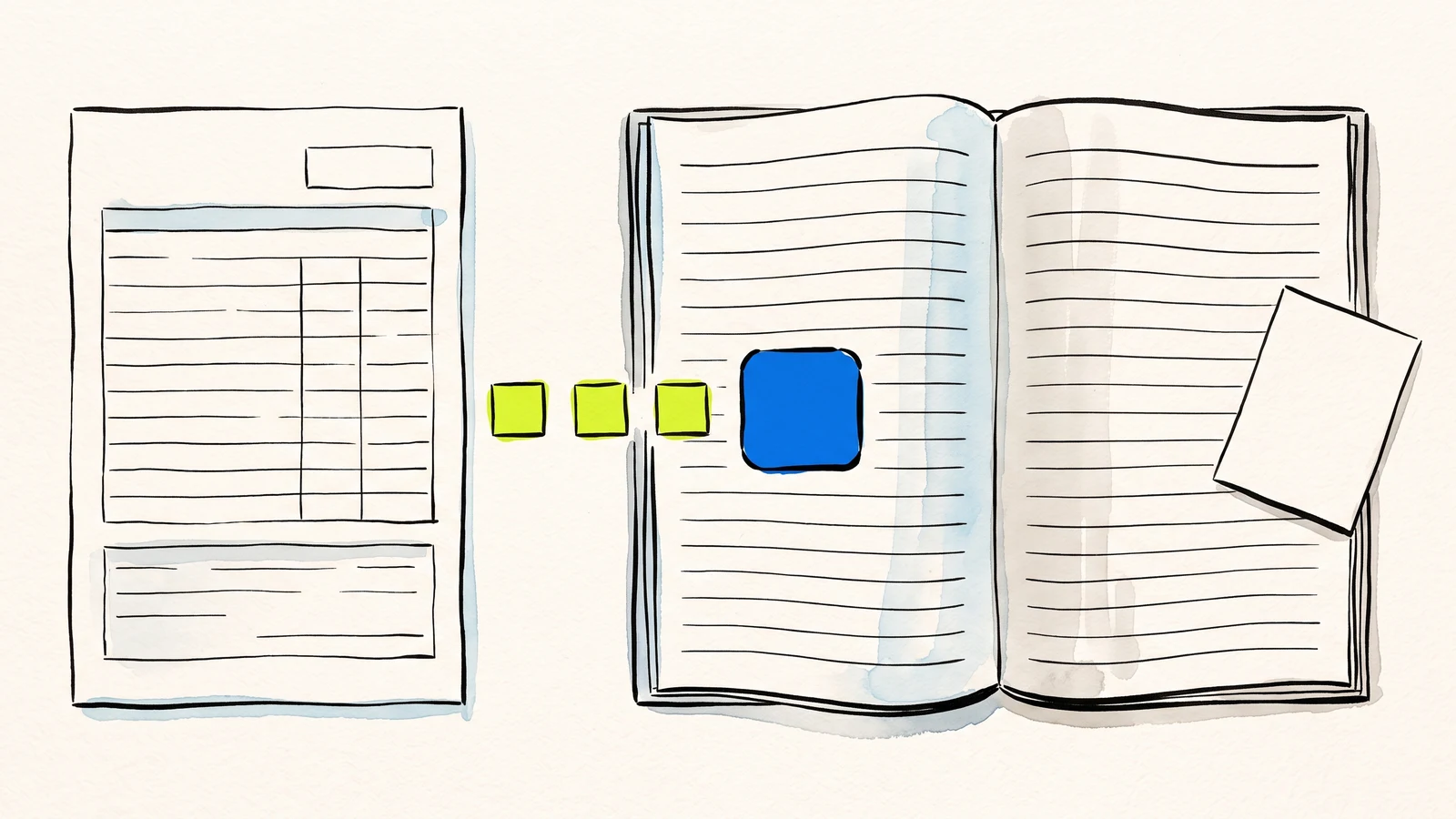
Each submission becomes its own Google Doc, in a Drive folder you own, created from a template you control.
The template is an ordinary Doc with placeholders in it. Style it however you like and every later copy inherits the styling.
This works from your own HTML form, so the person filling it in does not need a Google account.
How a form submission becomes a Google Doc
To create a Google Doc from a form submission, you need a template Doc with a placeholder for each field, and something that copies the template and swaps the placeholders for the submitted answers every time the form is used. Webtzm does both: pick the Doc output on a workflow and it writes the template into your Drive folder for you, then produces one filled copy per response.
What is different about this route is where the form lives. Every other answer to this question starts with a Google Form, or with a form hosted by the tool you are paying. This one starts with the form already on your site, in your own markup and your own design, posting to a workflow you configured.
What the page-one answers assume
Search for this and you get three families of answer, and each has a cost worth naming before you choose.
Apps Script. A trigger on form submit, DocumentApp, and a loop that replaces text in a copied file. This is the most flexible option in existence and it is free. It also assumes a Google Form as the source, and it assumes somebody will maintain a script whose failures arrive as an email nobody reads.
Workspace add-ons. Form Publisher, Form2Doc and their relatives do the merge properly and are worth the money if Google Forms is where your responses already are. They inherit everything about Google Forms, including its look and its sign-in behaviour on file questions.
Form builders. A hosted form with a Docs integration bolted on. These solve the design problem and lose the thing you came for: the form is now on someone else's domain, in their markup, and the Doc is generated from their copy of your data.
None of them is wrong. They are answers to a slightly different question, which is why this page exists.
The template is the design
When you set a workflow's output to a Google Doc, Webtzm creates one Doc in that workflow's Drive folder, named after the workflow with Template on the end. That single file determines what every future record looks like.
What is written into it
The starting template is deliberately plain: the workflow's name, then a short block of submission metadata, then every field on your form as a label followed by its placeholder. A placeholder is the field's key wrapped in double braces.
Volunteer signup

Submission reference
{{webtzm_id}}

Accepted at
{{accepted_at}}

Synced at
{{synced_at}}

Timezone
{{webtzm_timezone}}

Full name
{{name}}

Email address
{{email}}

Which sessions can you cover?
{{sessions}}
The four metadata placeholders are always available. {{webtzm_id}} is the submission reference, which is the value that ties this document to the same submission everywhere else it appears. {{accepted_at}} is when the submission was taken, {{synced_at}} is when the document was written, and {{webtzm_timezone}} is the timezone those timestamps are expressed in. Everything else is one placeholder per field, keyed by the name attribute on the input.
What happens on each submission
The template itself is never touched. For each accepted response, Webtzm copies it into the same folder, names the copy after the workflow and the submission reference, and replaces every placeholder with the submitted value. The result is a normal Google Doc: you can comment on it, share it, print it, or drop it into a folder somebody else watches.
Because the copy is made first and the replacement happens inside it, formatting survives. A placeholder set in a heading style produces a heading. A placeholder inside a table cell fills that cell. The template is not a data structure you are configuring; it is the finished document with the answers not in it yet.
Editing the template
The generated template is a starting point, and leaving it as it is would be a waste of the mechanism. Open it in Docs and treat it as a document you are writing.
Set the fonts, spacing and margins you want. Put your logo in the header. Add a page number in the footer.
Write the fixed prose. A quote acceptance, a booking confirmation or an intake summary is mostly sentences that never change, with a few values that do.
Move a placeholder wherever it makes sense. It does not have to stay under the label it was generated with, and it can appear more than once if the same value is needed twice.
Delete the labels or the metadata block you do not want. A placeholder you remove is simply not filled in.
The one rule is that the placeholder text has to survive intact, braces included. Docs will sometimes autocorrect straight quotes and dashes inside a template, and it can split a run of text across styling boundaries if you paste carelessly. If a value stops appearing, the usual cause is that {{email}} is no longer literally {{email}} in the document. Retyping it in one go fixes it.
Add a field to the form later and its placeholder is added to the template for you, at the end, so your layout is not rearranged behind your back. Move it where you want it.
Photographs end up in the document, not beside it
If the form has a file field and someone attaches a JPEG, PNG or GIF, the image is placed into the document at that field's placeholder rather than left as a link to chase. For a site inspection, a damage report, a proof of delivery or a portfolio submission this is the difference between a record and a to-do list.
Files that are not images are handled the way they always are: the file goes to the workflow's Drive folder and the document carries a link to it.
One workflow, one output
This is the constraint to design around, and it is better to hear it now than to discover it. A workflow delivers to one Google output. If you choose the Doc, you get the Doc; you do not also get a spreadsheet row for the same submission.
In practice that matters less than it sounds, because the two are answers to different needs. A spreadsheet is the right record when you will compare, filter and count many submissions. A document is the right record when a single submission has to be read, sent, signed or filed on its own. Decide which one the next action needs, and build the workflow for that. If a form genuinely needs both, it needs two workflows.
When to use something else
Stay with Apps Script if your responses already arrive through Google Forms and you want logic no merge can express: conditional sections, calculated values, a document assembled from several responses, or a chain of steps that ends somewhere else in your Google account. A script runs as you and can do things nothing external can.
Use a Workspace add-on if Google Forms is the source and you want the merge maintained by somebody else. Form Publisher does this well and integrates with the surface your responses are already in.
Use a form builder if you do not want to write markup at all. That is a real preference, and the tradeoff you accept is that the form is theirs.
The case for this route is the one the others do not cover: your own form, on your own page, filled in by people who may not have a Google account, producing a document in a Drive folder that belongs to you.
Turn one form into a document worth sending.
Pick the submission you currently retype into a template by hand, and let the template fill itself instead.
Build your first Webtzm delivery →Frequently asked questions
Where does the template come from?
Webtzm creates it for you in the workflow's Drive folder the first time you choose the Doc output. It contains the workflow name, a short metadata block and every field on your form as a label followed by its placeholder.
How do I change what the document looks like?
Open the template in Google Docs and edit it like any other document. Set the fonts, add your logo to the header, write the fixed prose and move the placeholders wherever they belong. Every copy made afterwards inherits the layout.
What is a placeholder?
The field's key wrapped in double braces, so a field named email appears as a brace-wrapped email in the template. Four extra values are always available: the submission reference, when it was accepted, when it was written and the timezone those times are in.
A value stopped appearing in the documents. Why?
Almost always because the placeholder text is no longer literally intact in the template. Docs can autocorrect punctuation inside one, or split a pasted run across styling boundaries. Retyping that placeholder in a single pass fixes it.
What happens to a photograph someone attaches?
A JPEG, PNG or GIF is placed into the document at that field's placeholder rather than left as a link to chase. Files that are not images go to the workflow's Drive folder with a link in the document.
Can the same submission also add a spreadsheet row?
No. A workflow delivers to one Google output, so choosing the Doc means this workflow produces documents. If a form genuinely needs both a working list and a readable record, that is two workflows.