What you will take away
A PDF record is a Google Doc that has been frozen. Design the document and you have designed the PDF.
Choose the PDF when the record must stop changing, and the Doc when it still has to be worked on.
A workflow delivers one output, so the choice is real and it is worth making deliberately.
Turning a form submission into a PDF
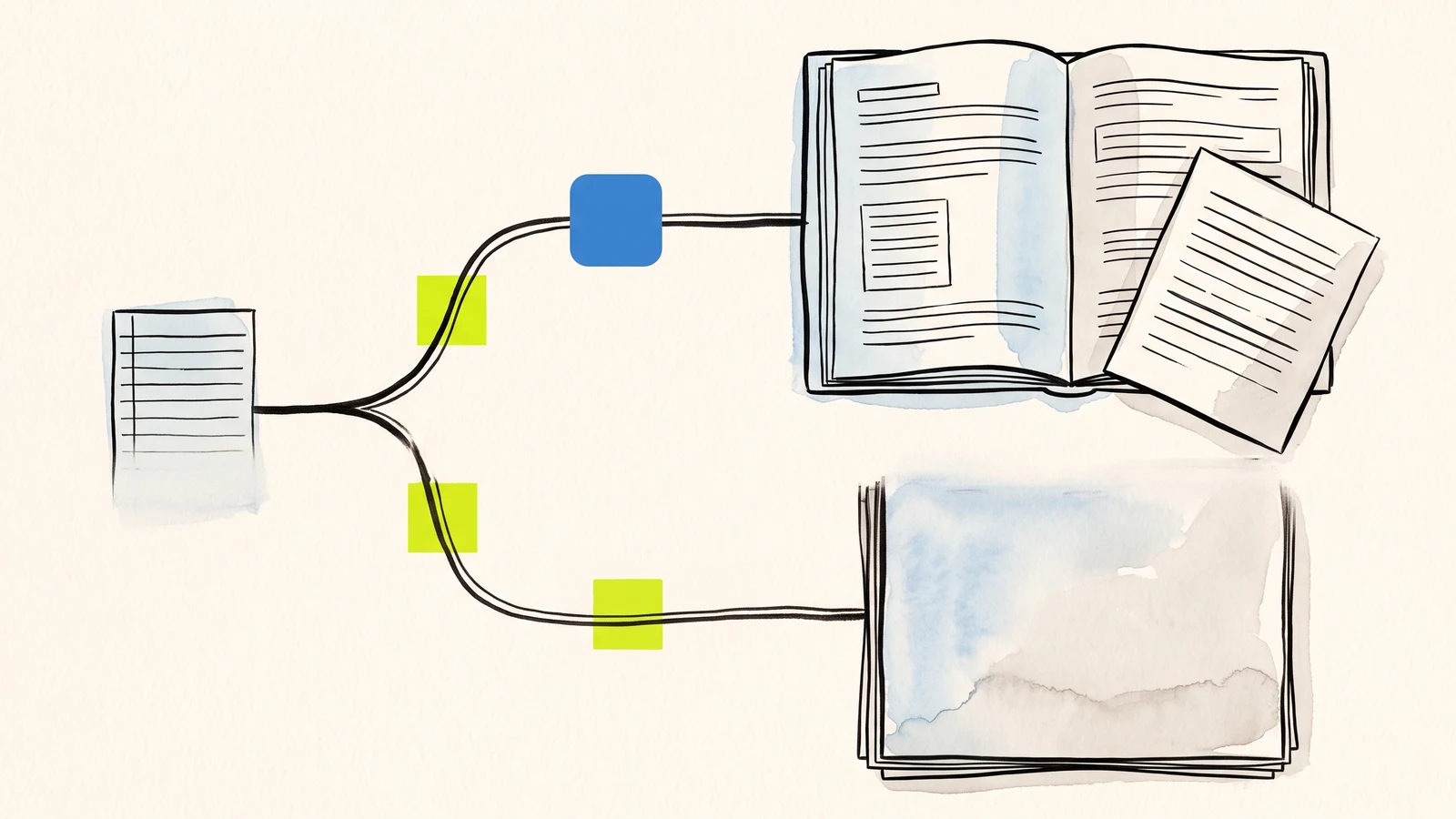
To get a PDF from a form submission you need a template that holds the layout, a merge that puts the submitted answers into a copy of it, and an export that flattens the result. Webtzm does all three: choose the PDF output on a workflow and every accepted response arrives as a finished PDF in a Google Drive folder you own.
The useful thing to know before you build anything is that the PDF is not generated from scratch. It is a Google Doc, filled in and then exported, which means the whole question of what your PDF looks like is the question of what one ordinary Doc in your Drive looks like.
What a PDF is actually for
Most submissions do not need one. A spreadsheet row is the better record whenever the job is to scan, sort, filter, count or assign, because those are things you do across many submissions at once and a document is a terrible container for that.
A PDF earns its place when the record has to stop changing. Three cases cover most of it:
It leaves your control. A quote, a confirmation, a receipt or a statement that goes to somebody outside your organization, who should be able to open it anywhere and should not be able to edit it.
It is evidence. A consent form, a signed declaration, an incident report or an inspection note, where the value is in it being a fixed account of what was submitted at a particular moment.
It is filed. Anything that goes into an archive, a case folder or a compliance record, where in five years the only thing that matters is that it opens and reads the same as it did.
If none of those apply, a Google Doc is usually the better choice, because it stays editable, commentable and searchable, and you can always export a PDF from it later if you turn out to need one. Choosing PDF up front is choosing to give that up on purpose.
How the PDF is made
Setting a workflow's output to PDF creates one template document in that workflow's Drive folder, named after the workflow. It contains the workflow name, a short metadata block, and every field on your form as a label followed by a placeholder — the field's key in double braces, so a field named email appears in the template as {{email}}. Alongside the fields sit four values that are always available: the submission reference, when it was accepted, when it was written, and the timezone those times are in.
For each submission the template is copied, the placeholders in the copy are replaced with the submitted answers, the copy is exported as a PDF, the PDF is saved into the folder named after the workflow and the submission reference, and the working copy is deleted. What you are left with is one PDF per response and no clutter. The template is never modified.
Attached photographs are placed into the document before the export, so an image sent with the submission is inside the PDF rather than a link next to it. That matters most for exactly the kind of record that wants to be a PDF: a damage report or a site inspection where the picture is the evidence.
Designing the PDF means editing one Doc
This is the part that repays ten minutes. The generated template is deliberately plain, and the plainness is not the product — it is a starting point you are expected to replace.
Open the template in Google Docs and lay it out as the document you actually want to send. Put your logo in the header and your terms in the footer. Set the typeface and the margins. Write the sentences that never change, and leave the placeholders where the answers belong, which does not have to be under the labels they were generated with. Put values in a table if a table is right. Use headings, and the exported PDF gets headings.
The single constraint is that a placeholder has to remain literally intact, braces and all, for it to be filled. Docs can autocorrect punctuation inside one or split a pasted run across styling boundaries, and when a value mysteriously stops appearing in the output that is nearly always what happened. Retyping the placeholder in one pass fixes it.
Add a field to the form later and its placeholder is appended to the template rather than inserted into your layout, so nothing you arranged gets rearranged. Move it where it belongs.
What you give up
Being honest about the losses is the point of choosing deliberately.
A PDF cannot be corrected. If a submission arrives with a typo in an address, the Doc version is a two-second fix and the PDF version means producing a replacement and deciding what to do with the original. For anything that gets amended in the normal course of business, that is a real cost.
A PDF is also worse to work with in bulk. Twenty documents in a folder are twenty things to open. Twenty rows in a sheet are one screen. If your actual daily task is triage rather than filing, the record you want is the row, and the fact that a PDF looks more official is not a reason to choose one.
One workflow, one output
A workflow delivers to a single Google output. Choosing the PDF means this workflow produces PDFs; the same submission does not also append a spreadsheet row. It is worth being clear about because it is easy to assume otherwise, and because it changes how you design.
The practical consequence is that you should pick the output by the next action, not by which record feels most complete. Ask what the person receiving this actually does next. If they work through a list, build for the list. If they read one thing and send it on, build for the document. If a process genuinely needs both a working list and a filed copy, that is two workflows, and two is not a workaround — it is an accurate description of two different jobs.
Files attached to a submission are not affected by any of this. An upload goes to the workflow's Drive folder whichever output you chose.
When something else is the better answer
Use a form builder with a PDF add-on — Jotform, Fluent Forms, Ninja Forms and their relatives — if what you need is the PDF emailed automatically to the person who submitted the form, with a copy to you, and you would rather not assemble that yourself. Automatic delivery to the submitter is their feature and they do it well.
Use Apps Script or a Workspace add-on such as Form Publisher if your responses already come through Google Forms. You are then adding a merge to a collection surface that is working, which is a smaller change than moving the form.
Use this route when the form is on your own site in your own markup, the people filling it in may not have a Google account, and you want the finished record sitting in your own Drive rather than in a vendor's dashboard. That is a narrower case than the category pages suggest, and it is the one that is genuinely not served elsewhere.
Give one submission a record that stops changing.
Take the form whose responses you currently paste into a template by hand, and let the template fill and flatten itself.
Build your first Webtzm delivery →Frequently asked questions
How is the PDF produced?
The template document is copied, the placeholders in the copy are replaced with the submitted answers, the copy is exported as a PDF into the workflow's Drive folder, and the working copy is deleted. You are left with one PDF per response and no clutter.
How do I control what the PDF looks like?
By editing the template in Google Docs. Set the fonts and margins, put your logo in the header, write the fixed prose and place the placeholders where the answers belong. The exported PDF is that document with the answers in it.
When should I choose a Doc instead?
When the record still has to be worked on. A Doc stays editable, commentable and searchable, and you can export a PDF from it later. Choose the PDF when the record has to stop changing, because it leaves your control, is evidence, or is being filed.
Can one submission produce both a PDF and a spreadsheet row?
No. A workflow delivers to one Google output. Pick the one your next action needs, and if a process genuinely needs both a working list and a filed copy, build two workflows. Attached files go to the workflow's Drive folder whichever output you chose.
Do attached photographs appear inside the PDF?
Yes. Images are placed into the document before it is exported, so a photograph sent with the submission is inside the PDF rather than a link beside it.
Can the PDF be emailed to the person who submitted the form?
Automatic delivery back to the submitter is a strength of the form builders that specialise in it, and if that is the feature you need one of those is the better fit. This route puts the finished record in your own Drive.